
[Fix] Network Connections Folder is Empty in Windows, Not Showing Network Adapters List
UPDATE: If you upgraded to Windows 10 and can’t find any available network connections and computers, check out METHOD 4, 5 and 9 first.
Today I’m going to post a solution of a weird problem which I faced yesterday. When I updated the driver of my network card and restarted my computer system, I faced a strange problem.
Suddenly the “Network Connection” icon in system tray started showing a yellow triangle with exclamation mark (!) on it as shown in following screenshot:
Advertisement

I double-checked the Internet connectivity and it was working absolutely fine. I was able to browse on Internet.
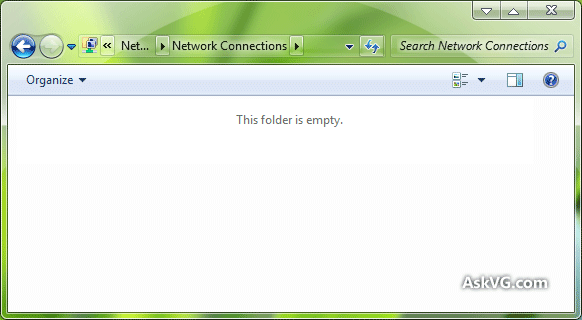
To investigate the issue, I checked the Network Connections folder, it was empty. It was not showing any network adapter. It was absolutely blank as shown in following screenshot:
I did lots of things to fix the issue like restarting the router, enabling/disabling network services but all in vain.
At last I tried resetting network adapters configuration using Windows registry and it did the trick. I was able to fix this annoying issue using my favorite Registry Editor. Actually Windows stores a cache of network adapters configuration in registry and if by any chance the cache becomes corrupted, you might face such kind of strange issues.
Anyway I’m sharing the solutions here so that if anyone else faces this problem, he’ll be able to fix it easily without any hard work.
Advertisement
To fix this issue, you just need to follow these simple steps:
METHOD 1:
1. Type regedit in RUN or Start search box and press Enter. It’ll open Registry Editor.
2. Now go to following key:
HKEY_LOCAL_MACHINE\SYSTEM\CurrentControlSet\Control\Network
3. In right-side pane, you’ll see a binary key “Config“. Select it and press Delete key on your keyboard. You just need to delete Config key.

Don’t worry. When you delete the key and open Network Connections folder or restart your system, Windows automatically re-creates the key. By deleting the key we are just clearing the configuration cache.
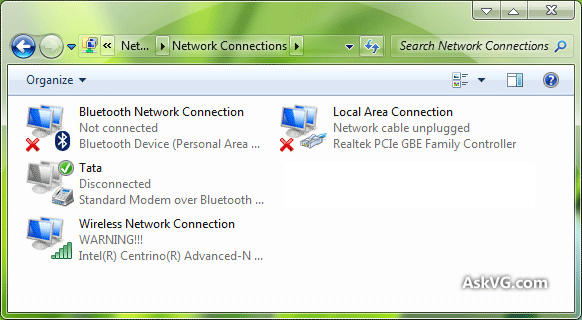
4. Once you delete the key, close Registry Editor and open Network Connections folder again and now it should show all network adapters without any problem.
PS: If you don’t want to edit registry manually and want a ready-made registry script to do the task automatically, download following ZIP file, extract it and run extracted REG file. It’ll ask for confirmation, accept it:
METHOD 2:
If the above mentioned method doesn’t work for you, try following solution given by our reader “Campbell”:
1. Open Device Manager using devmgmt.msc command and locate the Network adapters.
2. Right-click on each network adapter one bye one and select Uninstall.
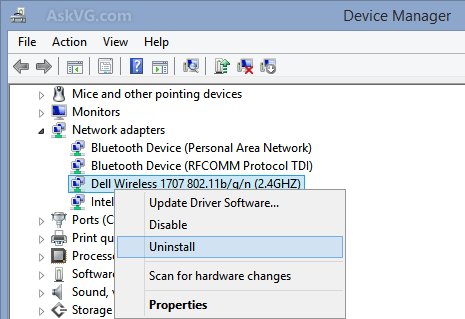
3. Once all have been removed, right-click again and select Scan for hardware changes.
The adapters will be rediscovered and when the drivers are loaded back, the devices will re-appear in Network Connections.
METHOD 3:
If none of the above mentioned methods work for you, try following solution given by our reader “Rusty”:
1. Type regedit in RUN or Start search box and press Enter. It’ll open Registry Editor.
2. Now go to following key:
HKEY_LOCAL_MACHINE\SYSTEM\CurrentControlSet\Control\Network\Connections
3. In right-side pane, you’ll see a multi-string key “ClassManagers“. Double-click on it and it’ll open the edit dialog box to change its value.
4. The dialog box will contain 4 GUIDs and each GUID must present on a separate line. If you find that all GUIDs are present in a single line, put them on separate lines by pressing Enter key after each closing curly bracket ‘}‘.
For your convenience, we are providing the correct value of the key. Copy following text and paste it in the edit dialog box:
{B4C8DF59-D16F-4042-80B7-3557A254B7C5}
{BA126AD3-2166-11D1-B1D0-00805FC1270E}
{BA126AD5-2166-11D1-B1D0-00805FC1270E}
{BA126ADD-2166-11D1-B1D0-00805FC1270E}

After correcting the value, click on OK button to apply changes.
5. That’s it. Close Registry Editor and open Network Connections folder again and now it should show all network adapters without any problem.
PS: If you are not familiar with modifying registry, you can download following ready-made registry script to do the task automatically. Just download following ZIP file, extract it and run extracted REG file. It’ll ask for confirmation, accept it:
METHOD 4:
This method has been added specially for Windows 10 users who upgraded from Windows 7 or Windows 8.1 and can’t see any wireless network available in the list:
1. Open Command Prompt as Administrator and run following commands one by one:
reg delete HKCR\CLSID\{988248f3-a1ad-49bf-9170-676cbbc36ba3} /va /f
netcfg -v -u dni_dne
2. Close Command Prompt and open Network Connections folder again and now it should show all network adapters without any problem.
NOTE: Many readers have reported the error 0x80004002 while executing the second command. The error may occur if the Registry key was not successfully deleted by the first command. In such condition, you’ll need to delete the Registry key manually using following steps shared by our reader “Scott French”:
1. Type regedit in RUN or Start search box and press Enter. It’ll open Registry Editor.
2. Now go to following key:
HKEY_CLASSES_ROOT\CLSID\{988248f3-a1ad-49bf-9170-676cbbc36ba3}
3. While you are on {988248f3-a1ad-49bf-9170-676cbbc36ba3} key, press Delete key to delete the key from Registry.
4. Now run the second command netcfg -v -u dni_dne in Command Prompt and it should work.
METHOD 5:
If you upgraded to a new Windows 10 version and unable to see network computers in File Explorer and other places, following fix will help you:
1. First of all open Services Manager using services.msc command in RUN dialog box / search box or by using other methods as mentioned in STEP 1 of following tutorial:
[Guide] Which Windows 10 Services are Safe to Disable?
2. Now scroll down and look for following services:
- Computer Browser
- Function Discovery Provider Host
- Function Discovery Resource Publication
- Network Connections
- UPnP Device Host
- Peer Name Resolution Protocol
- Peer Networking Grouping
- Peer Networking Identity Manager
3. Double-click on each service entry and make sure that “Automatic” is selected in Startup type drop-down box.
If it’s not set to Automatic, change the startup type to Automatic and click on Apply button. Also click on Start button to immediately start the service.
Follow same steps for all above mentioned services.
METHOD 6:
If the network adapters are showing properly in your computer but you are still getting yellow triangle with exclamation mark (!) on network icon in system tray and can’t connect to any website, you can try to use custom DNS server settings for your Internet connection with the help of following tutorial:
How to Change or Use Custom DNS Server Settings in Windows?

METHOD 7:
If using custom DNS doesn’t help you, try following:
If you are using any virtualization software such as Virtual Box, VMware Workstation, etc in your computer, these software also install their virtual network adapters to use Internet connection in the virtually installed operating system. Sometimes these virtual network adapters can cause your Internet connection not working.
To fix it, just uncheck or uninstall these virtual network adapters from your Internet connection properties as shown in following image:

To open Internet connection properties, go through STEP 1-3 as mentioned in above tutorial to change or use custom DNS server settings.
METHOD 8:
Some readers have reported that they faced this issue due to Kaspersky, Check Point Endpoint or other 3rd party security software. So if you are also facing this problem and none of the above mentioned solutions worked for you, try to uninstall your antivirus program or Internet security suite. It might fix the problem. If it works, you can try to reinstall the security software again, it should work now without any problem.
METHOD 9:
Windows 10 users can also take help of built-in “Network Reset” feature to fix network connection issues:
[Windows 10 Tip] Use “Network Reset” Feature to Fix Common Internet Connection Issues
PS: You can also check out following tutorial addressing similar issues:
[Fix] “One or More Network Protocols are Missing on This Computer” Error in Windows
[Fix] “Local Area Connection doesn’t have a Valid IP Configuration” Error Message in Windows
[Fix] No Internet Access After Installing Feature Update in Windows 10
[Windows Fix] Yellow Triangle with Exclamation Mark on Network Connections Icon in Taskbar
Guide to Fix All Kind of Network and Internet Connections Problems in Windows
Restarting the computer does the trick.
Press Ctrl+Alt+Del.
Click Task Manager (probably the last line).
Choose “Services” page (probably the last one).
Go down on the panel and click “Open services”.
Click on “Name” column (probably the first one).
Find the “Radio Management Service” (tip: type “r”).
Click on it with the right mouse button.
Choose “Properties” in the pop-up menu.
Click on it with the left mouse button.
Choose “General” page in the window (probably the first one).
Find “Startup type” line.
Choose “Automatic” in the drop down menu.
Find “Service status” right under it.
Click on “Start”.
Click on “Apply”.
Close all of the windows. Done.
Disclaimer: check the wireless network adapter and driver status in device manager. Airplane mode should be switch off.
None of the above steps worked.Unable to find the Registry files as mentioned above.
Did a PC reset and it started working fine, got back the network adaptors in windows 10.
P.S please do take a back up of your C drive and reset your PC.
This process wont take much time.
Hi !
Thanks that did the trick with the very first method. Thanks again!
Worked!!! Can’t believe it. Thank you so much.
I love the Internet.
Hello!
Method 2 should be okay to fix most of the issues related to this topic. But be sure that you uninstall ALL of the network connections (including the Bluetooth, virtual connections … under network connections); then reboot your PC, your network connections will be discovered and displayed back.
Cheers,
Another workaround solution is, from Windows 10, switch to “Airplane mode”, then reboot, then switch off the “Airplane mode”.
Hope it helps.
I tried to do method one but there is no REG_BINARY config document in the network folder. Even if i try and restart my computer a new one wont be created. What should i do?
This is obviously a huge issue. The fact that it cant be quickly corrected using a single control panel item, clearly points to a major design defect in Windows 10… In fact this has been a design flaw in all previous versions of Windows.
Microsoft would rather work on improving its EDGE browser to better compete with Google’s Chrome rather than correcting serious Windows 10 OS design flaws
You’re the BEST VG! 😀
Method 1 worked perfectly for me, but I can see your article also features several other methods to fix the situation, that’s really cool! Thank you so much!
I had this problem BUT I also caused this issue. I accidentally disabled “Network Connections” in “Services”, while disabling services I knowingly do not use, Duhhhh…lol.
And get this! By opening the “Network Connections” folder and clicking on,
“Network Connections” in the address bar:
Control Panel>All Control Panel Items>*Network Connections*
a message popped up, letting me know “Network Connections” in “Services” was disabled and to enable it. Can’t understand what made me decide to click the address bar but GLAD I DID!
Especially, after all the searching for a fix and repeatedly opening the Network Connections folder to see if the fixes I searched, found and tried would work. lol
thanks, that zip file is magic solved my issue! thanks man!
Another Method:
Step 1: Start your PC
Step 2: Start BIOS
Step 3: Connections
Step 4: Make sure your Network Interface Card (NIC) is ENABLED
Step 5: Save settings.
Step 6: Exit Bios.
Step 7: Start your PC up normally.
Step 8: Log in and search for ‘network connections’.
Step 9: Right click on desired connection and select ‘enable’.
I had a similar issue on a win7 box.. all network connections were missing, taskbar had a red X and all “Network adapters” in dev manager had a yellow triangle. every one all the mini ports, wifi card etc..
i uninstalled, (and deleted the driver software)
tried a winsock reset
rebooted, tried new cables
another local user etc – all no good
i opened dev manager (as administrator) and right clicked the Ethernet LAN adapter and choose properties. Went to update driver, then browser my computer, then let me pick from a list, then finally choose the driver that was listed (was the only one) and it installed.. rebooted and still working
Method 5 worked for me, on windows 8 Lenovo laptop.
For me the issue was the network adapter was not showing up in the network adapters control panel window even though it shows on device manager and internet was now working.
Thanks brother for these useful steps
will method 1 work on windows 10
This was the only comprehensive solution for the problem i was facing since two days on personal computer.
Very helpful post for all kinds of network issues. method 5th Worked for me
Make sure the “Network Connections” service is running.
file of 988248f3-a1ad-49bf-9170-676cbbc36ba3 is missing from my computer
Dude, thank you. Uninstalling drivers and making the computer search again fixed the problem for me 🙂 Love you
Thank you so much worked like a charm
I performed all those methods but none worked for me I need help
I’ve done all of these and the folder is still empty. Help? Please??
I tried them all still on my pc
Red cross sign and said that” Network discovery is turned off. Network computers and devices are not visible. Please turn on network discovery in Network Sharing centre”.
I don’t know what to do next.
To whoever this Campbell fellow is, who provided the Method 2 solution: My dude, thank you.
I got help from Method 2,when others failed. Thanks will be less.
Method 2
perfect, thank you very much
Hi you save my life. Thanks……………
After a PC crash my network adapter settings weren’t editable for any of the adapters and my LAN adapter wasn’t working. Method1 fixed it for me, Thanks a bunch!!!
Also, always make a copy of that Config key + a restore point + a copy of the whole registry in case something goes horribly wrong – it’s always good to have 3 lives!