
The Best Method to Remove Ribbon UI from Windows 8/8.1 Explorer
Microsoft’s new OS “Windows 8” comes with new Ribbon UI in Windows Explorer. Microsoft has implemented MS Office 2010 style Ribbon in Windows 8 Explorer.
Although the new Ribbon UI was added in Windows 8 Explorer to make users life easier but there are many people who don’t like this Ribbon UI and want to get the old Explorer toolbar back.
We have shared 2 methods in past to disable Ribbon UI and get old toolbar back in Windows 8 Explorer:
Advertisement
- How to Disable New Ribbon UI in Windows 8 Explorer?
- [Tip] Get Rid of Windows 8 Explorer Ribbon and Get Classic Toolbar Back
The method given in above mentioned link has one problem. It breaks Paint and WordPad apps in Windows 8 because both apps use Ribbon UI and since we disabled Ribbon UI, both apps stop working after using that method.
Today in this topic, we are going to share another method which completely removes Ribbon UI from Windows 8 Explorer and doesn’t break Paint, WordPad or any other app. Its absolutely safe to use and 100% working method.
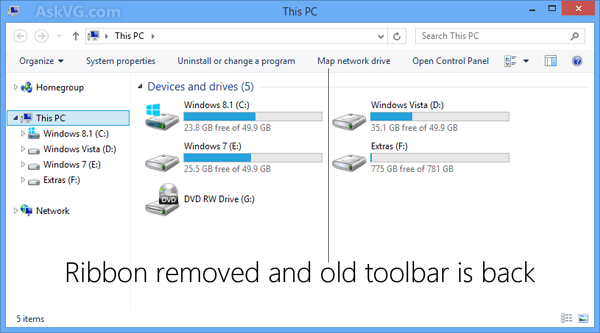
So without wasting time, lets start the tutorial:
1. Open Windows Explorer and go to C:\Windows\System32 folder. Here we are assuming that Windows 8 is installed in C: drive in your computer. If you installed Windows 8 in any other partition, replace C: drive with the correct drive letter.
2. Now look for a file ExplorerFrame.dll. Once you find the file, copy it to some other location for example on your Desktop.
3. Now we’ll need to edit this DLL file in our favorite tool Resource Hacker which can be found here.
Advertisement
4. Once you open this DLL file in Resource Hacker, go to:
UIFILE -> EXPLORER_RIBBON -> 1033
Here 1033 is language code for English. It might differ if you are using Windows 8 in a different language.
5. Now we’ll need to delete EXPLORER_RIBBON key. Right-click on 1033 key and select “Delete Resource” option. It’ll immediately delete the key.

6. Save the file and close Resource Hacker window.
7. Now we’ll need to replace default ExplorerFrame.dll file present in System32 folder with this new modified file. Again go to C:\Windows\System32 folder and take ownership of ExplorerFrame.dll file. You can use any of following 2 methods to take ownership:
- How to Add “Take Ownership” Option to File or Folder Context Menu in Windows?
- [Guide] How to Take Ownership (Permission) of a File or Folder Manually in Windows?
8. Once you take ownership of the file, rename the original “ExplorerFrame.dll” file to any other name such as ExplorerFrame_bak.dll or ExplorerFrame.old or any other name and then copy new modified ExplorerFrame.dll file from Desktop to “System32” folder.
9. That’s it. Restart your system and get ready to enjoy old toolbar in Windows 8 Explorer without the Ribbon.
Also Check:
5 Easy Ways to Remove Ribbon from Windows 8 and 8.1 Explorer
Resource Hacker don’t read 64-bit files… If you using the Win8 CP x64, you need to use other tools, like the Anolis Resourcer…
^^ It does read:
https://www.askvg.com/download-new-updated-resource-hacker-3-5-beta-with-64-bit-and-png-file-support/
Wish there was a supported/official way to disable the Ribbon using the registry or a Group Policy but next to that, your solution is the BEST. Thanks VG.
once you get the old style back how do you get rid of old new blue bar.
Is there a way to reverse engineer this tweak and get the Ribbon IN Windows Explorer 7?
^^ Not yet but you can try following:
https://www.askvg.com/transform-windows-7-into-windows-8-vnext-without-using-customization-pack/
Check the 6th point: Ribbon UI in Windows Explorer
^^ You can try but sometimes Replacer can also give errors regarding permission.
I actually have the opposite problem. I’m trying to tweak the registry to always show the explorer ribbon expanded. By default it’s collapsed. Anyone know how to do this?
i tried all the step but after restarting .. there is black screen after the welcome message
min win 8.1 enterprise
Mine Also Turn Into Blank Black Screen After Restart on my Windows 8.1. What Should I Do Now to Fix This ?
When I try restarting explorer, it says a “key” is missing; probably the fact that the EXPLORER_RIBBON is perhaps required.
Running: Windows 8.1 Update 1 (Build 9600) x64
^^ Its working fine here in Windows 8.1 Update 1 64-bit. I also tried it in Windows 8 and Windows 8.1 without Update 1. It worked every time without any problem. Make sure to NOT directly edit the file. First copy the file somewhere else, then edit and save the file and then replace default file with new one.
Thank you very much, it works!
But seems like the search box is distorted:
s2.postimg.org/pm6ideuyx/Screenshot_32.png
This is rather fascinating. HOWEVER… this tweak seems to BREAK certain FILE OPEN/SAVE dialog boxes. For instance, in Internet Explorer the open/save dialog NAVIGATION PANE is gone… and there is no apparent way to select a directory or switch drives. ( I like to use Internet Explorer to save web pages as single file .MHT archives. )
Works for me too! Thanks
But why does ms mend things that aren’t broken?
It does remove the ribbon but breaks other things.
One thing I found is that if you download files using Internet Explorer, the link to the downloads location doesn’t work
@scc you could try changing the options in internet explorer to have it save files onto the desktop (that is what I always do in my browsers). However I use classic shell which makes it show the desktop when there isnt anything open and gives me my classic start menu back (like previous windows). My problem with this solution is that it requires me to download and possibly install resource hacker which is a program I would only use once for this purpose. It would have been better if the op had just posted a link to the file that has been already modified. However I just used the other method and renamed UIRibbon.dll. The downsides of not being able to use paint, or wordpad will not effect me since I replaced those with the paint and wordpad from xp (I prefer xp versions anyway so its something I had already planned). I also replaced sound recorder with xp version and I never use internet explorer so that wouldnt bother me.
This worked perfectly. – Thank you!!