
Hidden Secret Features and Useful Hotkeys in Windows 8 and Later
UPDATE: All Windows 8 tips-n-tricks mentioned in this tutorial will also work fine in Windows 8.1 and Windows 10.
As we all know Microsoft has finalized development of its latest OS Windows 8 and a free 90-day trial version of Windows 8 RTM can be downloaded using following link:
Download Free Windows 8 RTM 90-day Trial Version
Advertisement
Download Free Windows 8.1 RTM 90-day Trial Version
Microsoft has made lots of changes in Windows 8. Microsoft has completely removed Start Menu and Start button from Windows 8 and all known registry tricks or other methods to get them back are not working in final version.
Removal of Start button and Start Menu also makes performing power operations a bit difficult. Now you don’t get a direct option to restart, shut down your PC. All these options have been moved to Settings charm which can be accessed by moving your mouse cursor to top-right corner of screen and selecting Settings charm from Charms bar.
You can check out our exclusive Windows 8 FAQ topic which contains solutions for all such problems such as adding Start Menu, Start button in Windows 8, accessing power options in Windows 8, etc:
Windows 8 RTM Frequently Asked Questions (FAQ)
Although Microsoft has removed a few essential features and functionality from Windows 8 but on the other hand they have also introduced many new useful features in Windows 8.
After using Windows 8 for a few days, we have came across a few interesting features, some of which are not directly visible on screen. The most strange part is that Microsoft has not talked about a few of these features yet in any official blog post.
Advertisement
Anyway for your convenience, today in this topic we are going to share a few hidden secret features which we have found in Windows 8.
So without wasting time, lets share the hidden gems in Windows 8:
Table of Contents
- 1. Hidden Quick Access Menu (Win+X Menu)
- 2. Auto-Save Screenshots
- 3. New Hotkeys to Change Folder View Types and Desktop View
- 4. New Hotkey to Access Safe Mode
- 5. New Hot Corners in Screen
- 6. Hidden “Applications” Folder to Launch Metro Apps Directly from Desktop
- 7. Hidden “Slide to Shutdown” Feature in Windows 8.1 and Later
- 8. Use Camera on Lock Screen in Windows 8.1 and Later
- 9. Hidden Trick to Close Metro Apps Permanently in Windows 8.1 and Later
- 10. Hidden Way to Access “Advanced Startup Screen” in Windows 8 and Later
- 11. New Useful Hotkeys (Keyboard Shortcuts)
- 12. A Few Other Things to Mention
Although Microsoft has removed Start button and Start Menu from Windows 8 Taskbar but they have added a hidden Quick Access Menu (QAM) or Win+X Menu which provides easier access to many useful system tools such as:
- Programs and Features
- Power Options
- System Settings
- Device Manager
- Command Prompt
- Task Manager
- Control Panel
- Search
- Run
- and a few more
To access this menu, move your mouse cursor to extreme bottom-left corner of screen and right-click and you’ll get the hidden system menu as shown in following screenshot:
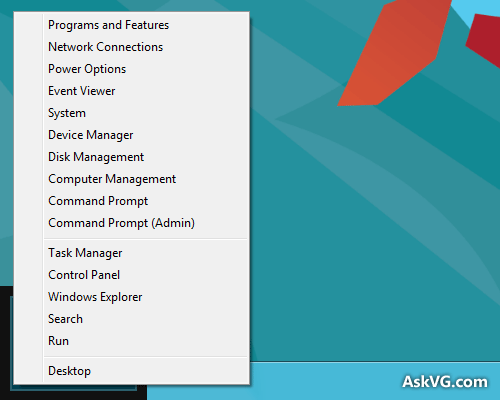
You can also access it using “Win+X” hotkey.
You can also check out following exclusive tutorial to customize this new menu in Windows 8:
[EXCLUSIVE] Customize New Quick Access Menu (Win+X Menu) in Windows 8
If you are still using Windows XP, Vista or Windows 7, you can get a similar system menu in Desktop context menu or My Computer context menu using following tutorials:
- [AIO] Ultimate Tutorial to Customize My Computer Context Menu in Windows XP, Vista and 7
- [AIO] Ultimate Tutorial to Customize Desktop Context Menu in Windows Vista and 7
UPDATE:
In Windows 8.1, Microsoft has added new options such as Shut down, Restart, Hibernate, Sleep and Sign out to Win+X menu as shown in following screenshot:

Windows 8.1 also allows you to replace Command Prompt shortcut with PowerShell in Win+X Menu:
How to Replace PowerShell with Command Prompt in “Win+X” Menu of Windows 8.1?
2. Auto-Save Screenshots
That’s an awesome addition to Windows 8. Just press “Win+PrtScn” keys together and Windows 8 will automatically save the screenshot in your “Pictures” library folder. The screenshot is saved with the name “Screenshot.png“. If you take more screenshots, they are saved with higher index number such as “Screenshot (2).png“, “Screenshot (3).png” and so on.

If you decide to reset the screenshot index number to 1 in future, you can do this with the help of following tutorial:
[Tip] How to Change or Reset Screenshot Index Counter in Windows 8 and Later
I wonder why they didn’t add hotkey “Win+Alt+PrtScn” to automatically save screenshot of a specific window.
UPDATE:
[Tip] Use “Win+Alt+PrtScn” Hotkey to Take Program Screenshots in Windows 10
Also Check:
[Tip] Use “Win+Shift+S” Hotkey to Take Selected Area Screenshot in Windows 10
3. New Hotkeys to Change Folder View Types and Desktop View
Microsoft has introduced new keyboard shortcuts in Windows 8 to change folder view types:
Ctrl+Shift+1 = To set Extra large icons view
Ctrl+Shift+2 = To set Large icons view
Ctrl+Shift+3 = To set Medium icons view
Ctrl+Shift+4 = To set Small icons view
Ctrl+Shift+5 = To set List view
Ctrl+Shift+6 = To set Details view
Ctrl+Shift+7 = To set Tiles view
Ctrl+Shift+8 = To set Content view
Just open any folder and press the above mentioned keys together to immediately change the folder view type. Its very useful hotkey addition to Windows.
PS: Adding this new hotkey feature reveals a hidden secret feature on Desktop. Although if you right-click on Desktop, you get only 3 view types to choose: Large icons, Medium icons and Small icons but you can use above mentioned hotkeys to apply any desired view type on Desktop as shown in following image:

It happens because Desktop in Windows OS is also a folder so the hotkeys also work on Desktop.
Related: [Fix] Windows 8 Showing Desktop Icons in Tiles, List or Details View
4. New Hotkey to Access Safe Mode
In previous Windows versions, if the user wanted to boot into Safe Mode, he needed to press “F8” key at system startup but this good old and well known hotkey no longer works in Windows 8. Microsoft has replaced it with a new hotkey.
The new hotkey is “Shift+F8“. So now you need to press “Shift+F8” keys together to access Safe Mode option in Windows 8. I can’t understand the reason behind this move. May be they’ll use “F8” hotkey for some new stuff? Who knows?
5. New Hot Corners in Screen
Windows 8 comes with hot corner feature which allows you to access some built-in options when you move your mouse cursor in a corner of your monitor screen.
When you move your mouse cursor to bottom-left corner of screen, it shows small Start Screen thumbnail which lets you go to Start Screen.

When you move your mouse cursor to top-left corner of screen, it shows a list of all running Metro apps so that you can switch between apps or close an app.

When you move your mouse cursor to top-right or bottom-right corner of screen, it shows new Charms Bar where you can access Settings, Search, Share, Devices and Start Screen charm.

If you don’t like Charms Bar to automatically appear on screen as soon as you move the cursor to top-right or bottom-right corners, you can disable it using following tutorial:
How to Disable “Charms Bar” Hint Feature in Windows 8?
If you want to disable all hot corners in Windows 8, check out following article:
How to Disable Hot Corners (Charms Bar, Start Screen Thumbnail, App Switch List) in Windows 8?
UPDATE:
In Windows 8.1, Microsoft has added built-in options to disable hot corners (Charms Bar and App Switcher):
How to Disable Hot Corners (Charms Bar and App Switch List) in Windows 8.1?
Did you know you can access a hidden folder “Applications” in Windows 8 by using following command:
explorer shell:::{4234d49b-0245-4df3-b780-3893943456e1}
or
shell:AppsFolder
You can execute the above mentioned command in RUN dialog box, in Command Prompt or from anywhere else. It’ll open a secret “Applications” folder containing shortcuts of all installed apps as shown in following screenshot:

This way you can directly launch Metro apps without going to Start Screen.
You can create a shortcut for this command using a simple method given here and then pin the shortcut to Taskbar, Start Screen or put it on Desktop for quick and easy access.
Windows 8.1 comes with a hidden “Slide to Shutdown” feature which allows you to quickly shut down your PC using a simple slide down mechanism.

Check out following tutorial to learn more about it:
How to Shutdown Windows 8.1 PC Using Hidden Secret “Slide to Shutdown” Feature?
8. Use Camera on Lock Screen in Windows 8.1 and Later
Windows 8.1 allows you to access your computer or tablet Camera directly from Lock Screen without log into your user account. You can take photos or create videos by using this hidden Camera app at Lock Screen.

Check out following tutorial to learn how to use this hidden feature:
How to Enable or Disable Use of Camera App on Windows 8.1 Lock Screen?
Also check:
How to Enable Image Slide Show Feature on Windows 8.1 Lock Screen?
Microsoft has changed the mechanism to permanently close Metro apps in Windows 8.1. Now if you simply drag-n-drop an app to bottom as you used to do in Windows 8, the app won’t close permanently in Windows 8.1. Instead the app will enter into suspend mode and will continue to run in background.
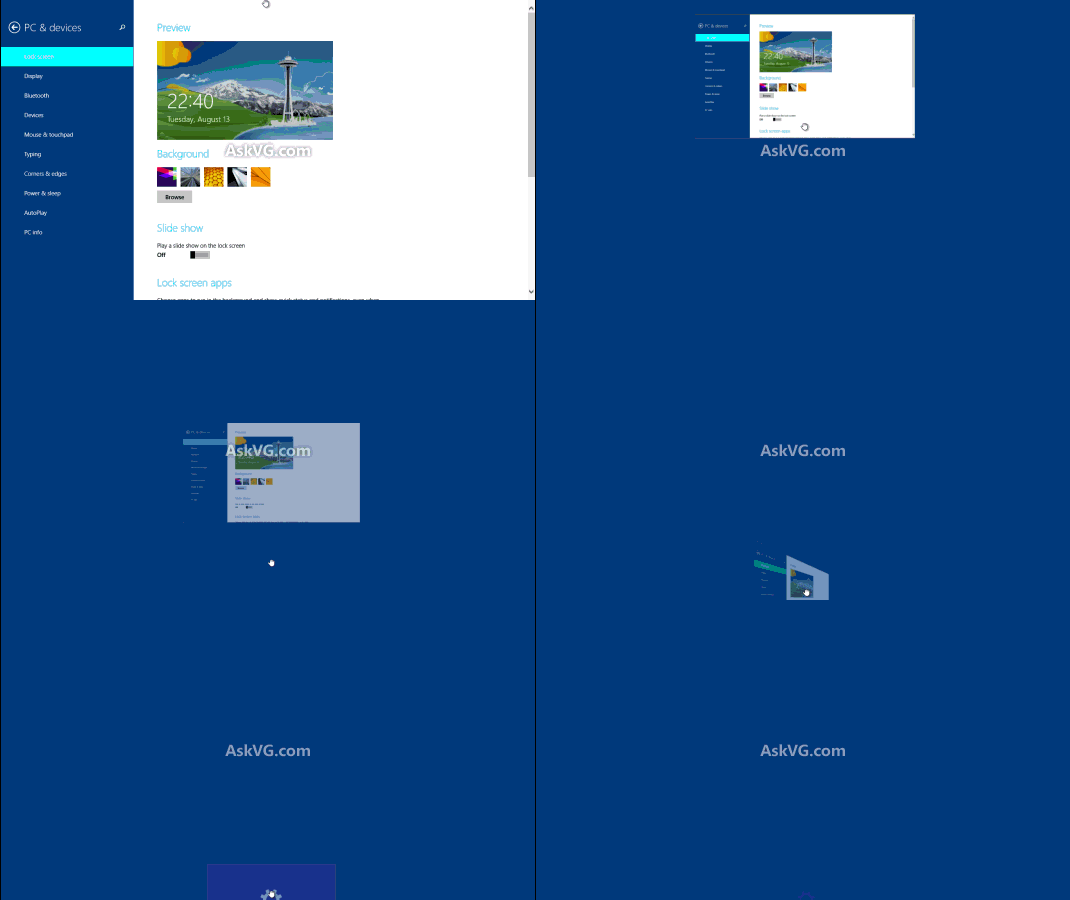
If you want to close the running app permanently, you can use following hidden secret trick:
[Guide] How to Close Metro Apps Permanently in Windows 8.1?
Windows 8 and 8.1 comes with a hidden secret method to directly access “Advanced Startup Screen” without restarting your PC. You can access various options such as restart your PC into another installed operating system, restart in Safe Mode or choose several advanced system recovery options from this screen.

Check out “Method 3” mentioned in following tutorial to learn more about this hidden feature:
[Tip] 5 Easy Ways to Switch from Windows 8 to Other Installed OS in Dual Boot Environment
11. New Useful Hotkeys (Keyboard Shortcuts)
There are a few useful hotkeys (keyboard shortcuts) introduced in Windows 8 which can make your Windows 8 experience better. Some of them are given below:
- Win key – Toggles between Start Screen and Windows Desktop
- Win+X – Opens Quick Access Menu as mentioned in point 1
- Win+PrtScn – Automatically saves screenshot in Pictures folder as mentioned in point 2
- Win+C – Shows Charms Bar
- Win+I – Shows Settings panel
- Win+K – Launches Devices charm
- Win+H – Launches Share charm
- Win+Q – Launches Search charm
- Win+W – Launches Settings search page
- Win+F – Launches Files search page
- Win+Tab – Shows Metro apps switcher as mentioned in point 4
- Win+Z – Shows / hides App bar at Start Screen to show all apps
- Win+Spacebar – Toggles between input languages and keyboard layout
- Win+, – From Start Screen peeks at the Desktop
- Win+Enter – Launches Narrator
- Ctrl+F1 – Minimizes / maximizes ribbon in Windows Explorer
- Ctrl+Tab – Launches All Apps list on Start Screen
12. A Few Other Things to Mention
Also check out following interesting stuff found in Windows 8:
- [Tip] Reclaim Free Space by Removing Old Windows Updates Files in Windows 8 and 8.1
- How to Change Icons and Text Labels (Names) of Start Screen Tiles in Windows 8 and 8.1?
- [Tips] Tweak and Customize Windows 8.1 Explorer “This PC”
- [Tip] Convert Start Screen into a Full Screen Start Menu (kind of) in Windows 8.1
- How to Enable Hidden “Aero Lite” Theme in Windows 8 RTM?
- How to Enable Options to Customize Windows Logon, Logoff, Exit and Unlock Sounds in Windows 8?
- [Fun Tip] Access New Metro Boot Loader While Running Windows 8
- Hidden Secret “Exit Explorer” Option in Windows 8 Taskbar
- Windows 8 Bug Report
- How to Change Metro Apps Default Installation Location in Windows 8?
- Windows 8 Allows You to Remove “Favorites” from Windows Explorer Navigation Pane
- Windows 8.1 Allows You to Show / Hide “Libraries” in Windows Explorer Navigation Pane
- Windows 8 Allows You to Change Custom Library Icon
- Windows 8 Allows You to Restart Explorer Using Task Manager
That’s all for now guys! We’ll keep updating the list whenever we find another secret stuff in Windows 8 so keep checking this place in future.
If you have also come across a new and special feature of Windows 8, feel free to share it in your comment.
Thanks for sharing these awesome hidden things…..thanks
hello frnds can i know how to bring back the start icon on the task bar in windows 8
^^ Please read following:
https://www.askvg.com/aio-list-of-all-free-software-to-get-start-menu-and-start-button-back-in-windows-8/
Windows looks if you’re pressing Shift+F8 for like less than 1 second.
____________________________________________________________________________________________________
Win+Z doesn’t work for me…
^^ the Appbar shown in the Metro App not on desktop
Oh, thanks. I was trying on Start Screen with no programs opened, because I wasn’t sure what App Bar really is.
@Hidden “Applications” Folder to Launch Metro Apps Directly from Desktop
I wonder, why doesn’t that folder have ribbon…
^^ “C:\Windows\Downloaded Program Files” folder also doesnt have ribbons as mentioned in following topic:
https://www.askvg.com/how-to-disable-new-ribbon-ui-and-get-old-toolbar-back-in-windows-8-explorer/
There is Any way In windows 7 to direct short key for snip tool (like ATL + PrnScr for win8) Take Screenshot and AutoSave them .
If u want the stock windows 8.1 wallpaper folder try this…
C:\windows\web
U guys will found the stock wallpapers of desktop and locksreen..
Try this out…..
In regards to your tip to take snapshots using “PrntScr”, Windows 7 and Windows 8,8.1 have included the Snipping Tool. You and many other geeks like us already know about it. But the average Windows user may not. It is located in C:\Windows\System32\SnippingTool.exe . It allows you to take a snapshot of any part of desktop screen or the whole screen. I use it all the time to capture images from the web or to create a tutorial.
There is also a free 3rd party program called oCam which will allow you to record activity anywhere on the desktop. I use it to make a video tutorial and to record live video streaming. This software can be downloaded from ohsoft.net/product_ocam.php
In regards to getting the classic start menu back in Windows 8 or 8.1, I use a program called Start8 which is not free but it is well worth the price. It can be downloaded from https://www.askvg.com/start8-download-freeware-to-get-start-button-orb-and-start-menu-back-in-windows-8/
Hi, this is a very useful and blog as I am setting up my new Asus 8.1 machine. I wanted to ask if there was anyway disable hotkeys on the keyboard in Windows 8 or 8.1.
Thanks and looking for a solution.
^^ Please check following:
https://www.askvg.com/tip-how-to-disable-all-win-keyboard-shortcuts-hotkeys-in-windows/
Sometimes in windows explorer when I hit my down arrow my screen magnafies and will not go back. I cannot use win/explorer on my laptop everything is to big. We have 8.1, Thanks
Whenever I minimize something I can’t find it anymore. It is not in the task bar.
^^ Which Windows are you using? If Windows 8.1, does it happen with Metro apps only? Please provide more details.
hello,
just curious if there is a registry key that does save the value if i run this command:
bcdedit /set {default} bootmenupolicy legacy
Thanks in advance! 🙂
Thanks a lot. Now my PC can restart, thanx to the trick above.
Keep up the good work.
Is there a shortcut to switch between the Metro (start menu) and the apps page? The button to switch between the two us normally in the bottom left corner when you are at the start menu
The easiest solution I have found for custom keyboard layouts on Win 8.1 is to use the Microsoft keyboard layout Creator 1.4 on another computer with an earlier operating system. Windows xp worked for me.
After 5 hours of fiddling I came to the conclusion that Win 8.1 is incapable of building the appropriate files using the aforementioned software. It will allow you to load and modify keyboards but not save them.
On the older computer Run the software and load an existing keyboard. Modify it to suit your needs. Under the projects tab, click the build function and save the files to a usb stick.
Download and install Microsoft Keyboard Layout Creator 1.4 on your Windows 8.1 computer and then run setup from the saved files on your usb stick.
It will load your customised keyboard straight to your keyboard toolbar at the bottom right of your screen. If you are using an earlier operating system than XP or Vista you may have to download and install version 1.3
right side ALT KEY not working in win-8.1. pls help me
how to find my product key and activation key
^^ Check following:
https://www.askvg.com/winguggle-get-your-windows-and-office-product-keys-easily-and-quickly/
https://www.askvg.com/jalapeno-keyfinder-thing-find-serial-key-of-microsoft-software/
Great Commands.Very Userfull information…:)
Thank YOu….:)
Your instructions for deleting MDM.exe don’t work in windows 10 64 bit, Please advise some different actions.Thanks.
Love your articles…..so much interesting things to learn. Thanks for all of your efforts!!
how to hide desktop icons just by short cut actions using windows keys
On windows 8.1, I found a really useful app that can be used to bring back the old, classic windows 7 (kinda), or if your love old stuff, windows XP! Its called Classic Shell, and I really like it!
I learned a lot, this is great.