
Where Does Windows Store Temporary Files and How to Change TEMP Folder Location?
Whenever we talk about free-up disk space on Windows PC, we always suggest to clear “TEMP” folder. Deleting all files and folders present in “TEMP” folder might provide you a decent amount of free space.
You might be wondering what is this “TEMP” folder and why is it created by Windows? “TEMP” folder, as the name suggests, is used to store temporary files and folders which are created by Windows services and many 3rd party software programs. Since the files and folders stored in Temp folder are temporary, its absolutely safe to remove them.
Now the question comes how to access this Temp folder to clear its content. There are 2 Temp folders present in Windows OS:
Advertisement
- Temp folder present in C:\Windows folder
- Temp folder present in Local Settings folder for each logged-in user
First “Temp” folder which is found in “C:\Windows\” directory is a system folder and is used by Windows to store temporary files.
Second “Temp” folder is stored in “%USERPROFILE%\AppData\Local\” directory in Windows Vista, 7 and 8 and in “%USERPROFILE%\Local Settings\” directory in Windows XP and previous versions. This folder is different for each Windows user i.e., each logged-in user gets a separate “Temp” folder. This “Temp” folder is used by 3rd party programs to store their temporary files for example, temporary downloaded parts of files by your download manager software, etc.
To access these 2 “Temp” folders, you need to use following commands:
- TEMP
- %TEMP%
You can run these commands in RUN dialog box or start menu search box. When you run TEMP command, it opens system “Temp” folder stored in C:\Windows directory and when you run %TEMP% command, it opens the user temp folder stored in “%USERPROFILE%” directory. You can learn more about these kind of environment variables using following tutorial:
List of Environment Variables in Windows XP, Vista and 7
Today in this tutorial, we’ll show you how to tell Windows to use a single “Temp” folder for both system and user temporary files so that we don’t need to open 2 different folders to free-up disk space.
We’ll also learn changing location of “Temp” folder from C:\ drive to some other partition. The reason behind changing the location is very simple! First, it’ll not eat valuable disk space of our system drive. Second, we’ll not need to worry about clearing content of Temp folder regularly to free-up disk space on C: drive. It might also speed up your system a little bit.
Advertisement
So without wasting time, lets start the tutorial:
1. Right-click on Computer icon on Desktop and select Properties (or press WIN + Pause/Break keys). Now click on Advanced system settings link in left side pane. (You can open it directly by giving sysdm.cpl command in RUN or start menu search box)
2. Now click on Environment Variables button. It’ll open a new window which will show a list of all environment variables defined in your Windows.
There would be 2 different sections:
- User variables
- System variables
You’ll see TEMP and TMP variables listed in User variables section. The System variables section will contain a long list of various environment variables along with TEMP and TMP variables as shown in following screenshot:
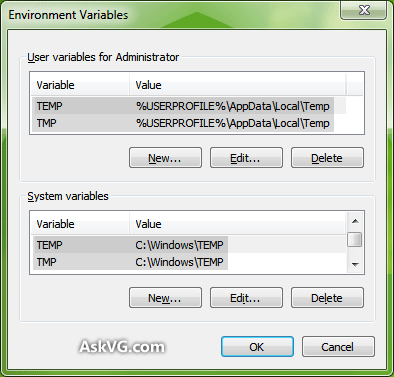
3. Now to change location of TEMP folder from C:\Windows\Temp to other partition, first we’ll need to create a new TEMP folder in the desired partition.
In this example, we are going to move TEMP folder location to D:\ drive, so we’ll create a new folder “TEMP” in D:\ drive. Please note that you can use any name for the new folder, its not necessary to have TEMP as its name.
Now you can double-click on the TEMP variable present in System variables section or select it and click on Edit button. Now type location of new TEMP folder (which is D:\Temp in our case) and click on OK button.
Repeat same step for TMP variable as well.
That’s it. It’ll change the location of TEMP folder in Windows.
4. Now we’ll ask Windows to use a single TEMP folder for both system and user temporary files. We can do this by either deleting both TEMP and TMP variables listed in User variables section or edit the variables and set their values to the same folder which we used for system variables in step 3 i.e., D:\Temp folder.
Once you delete both variables in User variables section or set their values to new TEMP folder path, it’ll tell Windows to use a single TEMP folder to store all temporary files and folders created by Windows as well as 3rd party software programs.

5. You’ll need to restart your system to take effect.
Believe me guys, setting user TEMP folder to same as system TEMP folder is one of the first few tasks which I always do after doing a fresh installation of Windows. Having separate TEMP folders is quite annoying to me. What about you?
hi VG! Do u have any registry setting,i mean like making this with registqy eg temp.reg file for changing its defult dic?
^^ Here you go:
HKEY_CURRENT_USER\Environment
no not that bro,, i need .reg file that makes or assains my own location as default,,
^^ Just export that key and it’ll create a .REG file. You can edit the file in Notepad and change the path to your desired folder.
i am working online and would like to know if its possible to transfer/save my worksheet on a local drive and not be reflected in the main drive or server.
I followed the steps given above and changed location of TEMP and TMP to another drive under new folder “TEMP”.
problem 1. now my microsoft word keeps crashing with error message “work file could not be created, check the temp environment”.
problem 2. my c drive is still very close to full, though i have checked and all new temp and tmp files have been created in my new combined TEMP folder.
what to do with the 2 problems that i have?
^^ Regarding first problem make sure the new TEMP and TMP folders have full permissions and control. Also check Word settings and if you find any reference to old TEMP or TMP folders, change the path to new one.
Regarding second problem, check out following tutorial:
https://www.askvg.com/how-to-get-free-space-in-windows/
How do I switch back to the original default folders on windows 8?
Would those be?:
USER VARIABLES FOR ADMINISTRATOR
TEMP %USERPROFILE%\AppData\Local\Temp
TMP %USERPROFILE%\AppData\Local\Temp
SYSTEM VARIABLES
TEMP C:\Windows\Temp
TMP C:\Windows\Temp
Silly me forgot to write them down before changing the path
( which is making some applications not respond )
One more quick question, just to satisfy my scared mind, when I went to change it back, it no longer said Administrator Variables, it had my User Name at the top where Administrator used to be.
I changed it back anyway thinking that after the reboot it would go back to Administrator Variables, it did not. Is that ok? Donald is the Administrator BTW.
SEE PIC :
i.imgur.com/C0vSxmX.png
^^ Dont worry about it. Its default behavior. In my system, its showing my username.
Oh thanks so much, good to know, kind of thought so but just wanted to be certain.
Very kind of you to take the time to answer.
about the temp.. i always clean or deelete my temp using %temp% in run, then when i donwloading some files (mp3 or videos) it stored in temp not on my donwloading section. how i can returned on my suggested folder? thanks
The tutorial for moving TEMP folder was so easy to follow I could hardly believe it actually worked. Thank you so much. This page is bookmarked for sure.
Hello. I have problem, Wien I run an exe-file the system denie because of….
“unable to make the map “C:/users/sture/AppData/Temp/is-Q361R.tmp”. And… Cod 5:Access denied”
I have done the check about path for Temp and Tmp, and its OK
Any idea?
^^ First of all please post your HijackThis log file in following topic:
https://www.askvg.com/is-your-system-infected-with-a-virus-spyware-adware-trojan/
Question/ What happens if I set the system to not accept Temp files? Does that cause any problems while using web sites? And could anyone recommend weather or not to sed mediun sized files vs. Low size , etc? I truly do not know what any of it means or how vulnerable it could make my computer to allow temp settings?
^^ You can allow Windows to store temp files without any worries. Its absolutely safe.
I have over 3000 files named in this format: oct2EF2.tmp.png on my C: drive. When I delete them they come back. HELPPP!!!!!!!!!
^^ Please post your HijackThis log file in following topic:
https://www.askvg.com/is-your-system-infected-with-a-virus-spyware-adware-trojan/
Thank you..
Your article helped me to solve the 1622 error in Silverlight installation..
It’s a great site.
I’m newbie to win8.1 so maybe the question is trivial.
I have a standard user (with local account) in my pc.
I login in to her account. When I click on Advanced system settings a window pop-ups and asks
administrator password. After typing it and clicking on Yes button
an Environment Variables window pop-ups and shows the
User variables for Administrator, not the user’s ones.
How is it possible to modify the user variables for standard user?
don’t know if anyone will answer this but i don’t want to relocate my temp folder i want to give it more space/ram/whatever it keeps running out of.
im the kinda person that has a need for 20 note pad docs to be open with Skype ftp chrome and other various programs just to get what i need done so im always getting errors saying not enough space or memory to complete this action i have over 500 gigs left on hdd and 20 gigs of ddr3 Kingston hyper fury ram so idk what else i need but i would like to increase the space/memory to temp folder if there’s a way thanks for reading.
^^ Your issue is not related to TEMP folder. Its size is not restricted. You can try to increase the size of virtual memory/pagefile using System Properties.
Is it possible to keep the default location of the TEMP folder in tact and still remove unwanted temporary files, so as to free up disk space? I don’t know much about computers (though exploring such issues is extremely enjoyable) so I don’t want to tamper with anything technical with my computer. Any suggestions?
^^ You can empty TEMP folder anytime you want. It contains only temporary files which are safe to delete.
This I’m sure is going to sound as if I’m completely ignorant, but I’d rather ask a dumb question than pay for a dumber result from doing something I shouldn’t have!
To be clear, when I get to my temp folder ( Computer – Local Disc (C:) – Windows – Temp ) the first 3/4 of what appears after 5 folders are all .log files… At this point, do I simply highlight everything I see and hit delete?? I’m using Windows 7 Home Premium.
Thanks in advance for the assist!
^^ Yes. Everything present in TEMP folder is safe to delete.
Thanks a lot!!!! I was wondering why I am running out of space on my SSD System drive all the time. Today it was down to 22Mb free space on C:/ drive and I finally had enough and goggled it:)
Very easy to follow instructions, Thanks again!
Hello to everyone,
is there any chance to command Windows (thru Registry or Group Policy) like Administrator, that when it’s creates a new users, Windows automatically set the Temp path for that Local User to the C:\Temp folder.
Thanks in advaced…