
Download Windows 7 and Server 2008 R2 Service Pack 1 (SP1)
Microsoft has released Service Pack 1 (SP1) for Windows 7 and Server 2008 R2 which can be downloaded using following link:
For your convenience, we are also sharing direct download links for Service Pack 1 which are as following:
Advertisement
Direct Download Link of SP1 32-bit (EXE) (537.809 MB)
Direct Download Link of SP1 64-bit (EXE) (903.196 MB)
Direct Download Link of SP1 32-bit and 64-bit (ISO) (1953.3 MB)
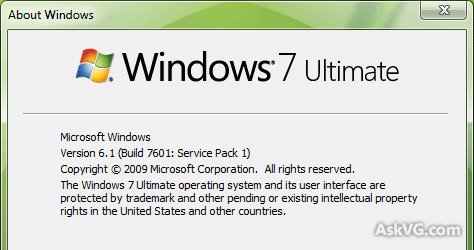
Let us tell you again that SP1 is a joint release for both Windows Server 2008 R2 and Windows 7.
SP1 doesn’t contain any new features that are specific to Windows 7 itself. For Windows 7, SP1 is simply a combination of updates already available through Windows Update and additional hotfixes based on feedback by customers and partners.
From the server side, two key new features have been included:
Advertisement
Dynamic memory is an enhancement to Hyper-V in R2 and allows IT administrators to pool all the memory available on a physical host and dynamically distribute it to virtual machines running on that host as necessary. That means based on changes in workload, your VMs will be able to receive new memory allocations without a service interruption.
RemoteFX is the latest addition to Microsoft’s desktop virtualization stack. Using this new feature in Windows Server 2008 R2, you’ll be able to deliver an even richer and more user-transparent desktop virtualization experience. RemoteFX functions independently of any graphics stack and supports any screen content, including rich content like Silverlight or Flash. It also enhances the end-user’s hardware experience with support for USB redirection. Because it uses virtualized graphics resources, RemoteFX works on a wide array of target devices, which means you can deploy it over both thick and thin client hosts and a wide variety of network configurations.
PS: After installing SP1 don’t forget to install Convenience rollup package which contains all post-SP1 updates:
Install All Post-SP1 Updates Offline in Windows 7 Using Convenience Rollup Package
Also check:
How to Uninstall Windows 7 and Server 2008 R2 Service Pack 1 (SP1)?
Will this install without any problems on a new freshly installed Windows 7? Are there prerequisites?
^^ Yes. It’ll not cause any problem after all it has been released to fix problems. 😉
Felt so bad that the direct download link is broken. When I run it, it starts normally. But when I click the next button to start the installation, it shows that installation was not successful and shows the error :
error: TRUST_E_NOSIGNATURE(0x800b0100)
It also gave me the link to download an update which might fix this problem but that doesn’t help, it(update) shown an error:
—————————
Windows Update Standalone Installer
—————————
Installer encountered an error: 0x8007000d
The data is invalid.
—————————
OK
—————————
As the SP1 setup for windows 7 x64 is so large (903 MB), it takes about 4 – 5 hours & after downloading, all in vain!
Also I have a restart pending to install some updates from Windows Update app. Is this not stopping SP1 to install? I have also tried to run sfc /scannow command in cmd in admin rights,
it also showed me an error:
C:\Windows\system32>sfc /scannow
Beginning system scan. This process will take some time.
There is a system repair pending which requires reboot to complete. Restart
Windows and run sfc again.
Please Help
Windows 7 64 bit
Google Chrome 33 (portable)
hi, i want to download win7 without service pack? have u any link plz send me
I have some issues too.
I have the updates required for windows 10 app but i can’t see it.
Problem is that i formatted the main drive yesterday.
I had this icon before formatting and now i don’t.
3 of the updates are not installed but i don’t know if they are making problems for me to do this…
Everything that you wrote here doesn’t really help me so i would like to know if these updates will make any difference…
And also if you can help me fix those
These are the updates:
1) Update for Internet Explorer 8 Compatibility View List for Windows 7 for x64-based Systems (KB2598845)
Installation status: Failed
Error details: Code 80242016
Update type: Recommended
2) Microsoft .NET Framework 4.5.2 for Windows 7 x64-based Systems (KB2901983)
Installation status: Failed
Error details: Code 40010004
Update type: Recommended
3) Platform Update for Windows 7 x64-Edition (KB2670838)
Installation status: Canceled
Error details: Code 8024000B
Update type: Optional
(I Canceled 10 more updates at the same time but this one didn’t install after restart unlike others…)
I have some issues too.
I have the updates required for windows 10 app but i can’t see it.
Problem is that i formatted the main drive yesterday.
I had this icon before formatting and now i don’t.
3 of the updates are not installed but i don’t know if they are making problems for me to do this…
Everything that you wrote here doesn’t really help me so i would like to know if these updates will make any difference…
And also if you can help me fix those
These are the updates:
1) Update for Internet Explorer 8 Compatibility View List for Windows 7 for x64-based Systems (KB2598845)
Installation status: Failed
Error details: Code 80242016
Update type: Recommended
2) Microsoft .NET Framework 4.5.2 for Windows 7 x64-based Systems (KB2901983)
Installation status: Failed
Error details: Code 40010004
Update type: Recommended
^^ Yes. Make sure to install all available updates.
I would like to upgrade to windows 10 and have two devices. A desktop, windows 7 and a laptop windows 8.1. to start with for the windows 7 I have to down load a (Get windows 10 icon) and I also have to download a service pack 1. I already have (6.1.7601 Service Pack 1 Build 7601) installed on the computer. When I went to download the new service pack it asked me which one I wanted and provided several choices. How do I know which one I am supposed to download? I don’t know that much about the workings of a computer and need some help.
Hello, can W7 SP1 be slipstreamed into a multi install ISO image? We setup numerous or try to setup numerous systems a week. It is at a nonprofit organization and we get legitimate keys from a certified microsoft source for each machine. so having SP1 in the install ISO would make life a lot easier.
Thank You
Tom
Hello, can W7 SP1 be slipstreamed into a Multi Image ISO of 7. we are installing on numerous machines a week and it is at a non profit. We purchase keys from a certified MS source. It would be easiest to slipstream SP1 and then the Rollup into this ISO but I do not know how it would work being a multiple install image. 32/64
Hi,
Thomas,
You can if you want to upgrade a windows on PC then u could get the disk if you dont have it then download it
You can choose between 64 or 86/32 Bit Win 7 but its not in that mount that into the Driver and open it click install.You should see Install Now.Click that and if you have update be sure to do that if it takes long then ignore it you should see now:
Upgrade
and
Custom
Custom is just for reinstalling if you want your windows 7
Upgrade is to upgrade your windows to a next level but for that make sure to have a Windows Activation Key.
As you proceed maybe it would upgrade to Windows 8.1 or Windows 10 if it upgrades it to Win 8.1 you can:
1.Stay with windows 8 or follow again these instructions and upgrade to windows 10 but for that you need to meet reqs for windows!
2.Download the Windows 8 Installation Iso then follow these instructions again.
3.Upgrade it ,wait and you are done.
If you have any Issues with this or i may be wrong tell me!
Regards,
Nikola
Thanks a lot Admin it helps me a lot thanks thanks thanks
thanks man for sharing
When I attempt to install Windows 7 Service Pack 1 (64 bit, Professional Edition) I receive the following error. Please Note: It is in text form, because as a blind user, I am unfamiliar with how to capture screenshorts in this kind of a dialogue. Install “Windows Service Pack
graphic 54 graphic 416 Install Windows Service Pack
Installation was not successful
An unknown error has occurred. (Details)
Error: ERROR_BAD_EXE_FORMAT(0x800700c1)
Go online to learn more about this issue
Close” Any resolution help you can provide is much appreciated! I know you are a trustworthy source. I’ve spent the last several hours researching and applying 12+ improvements on Windows 10, 64 Bit Home Premium… Thanks!
^^ It seems the downloaded EXE file was corrupted. I’ll advise you to re-download a fresh copy of SP1.
Thanks.