
[Tip] Get Classic Wordpad (without Ribbons) Back in Windows 7 and Later
Someone asked us how can he get the good ol’ classic Wordpad and Paint programs back in Windows 7 as he can’t get used to the new ribbon interface. So here we’ll tell you a way to get the classic Wordpad and Paint apps back in Windows 7 and later OS.
Actually Windows 7 supports the old Wordpad and Paint.
Following tutorial shows you how to get classic Paint app working in Windows 7:
Advertisement
[Tip] Get Classic MS Paint (without Ribbons) in Windows 7 and Later
And here is the step-by-step tutorial to get classic Wordpad program working in Windows 7:

Get Classic Wordpad Program Without Ribbon UI in Windows 7:
If you have Windows Vista installed along with Windows 7 in your computer, you can directly run the “wordpad.exe” file present in “C:\Program Files\Windows NT\Accessories” folder and it’ll run the old Wordpad without any problem.
But if you don’t have Windows Vista installed, you can download the classic Wordpad program from following link:
Download Classic Wordpad Program
You can create a shortcut of Wordpad EXE file at Desktop or pin the shortcut to Taskbar or Start Menu for quick and easy access.
Advertisement
Replace New Wordpad App with Classic Wordpad in Windows 7:
If you want to completely replace the new Wordpad in Windows 7 with the old Wordpad program, you can follow these simple and easy to use steps:
1. Open following folder:
C:\Program Files\Windows NT\Accessories
You can also open it by typing the path in RUN dialog box and press Enter.
2. Now take ownership of “wordpad.exe” file. To take ownership, check out following tutorials:
[Guide] How to Take Ownership (Permission) of a File or Folder Manually in Windows?
Add Take Ownership Option in File / Folder Context Menu in Windows Vista and 7
3. Now rename the “wordpad.exe” file to “wordpad_backup.exe“.
4. Now go to “en-US” folder and take ownership of “wordpad.exe.mui” file. After taking ownership rename the file to “wordpad_backup.exe.mui“.
5. Now copy “wordpad.exe” file from downloaded ZIP file and paste it in “C:\Program Files\Windows NT\Accessories” folder.

Do the same thing for “wordpad.exe.mui” file, copy it from downloaded ZIP file and paste in “C:\Program Files\Windows NT\Accessories\en-US” folder.
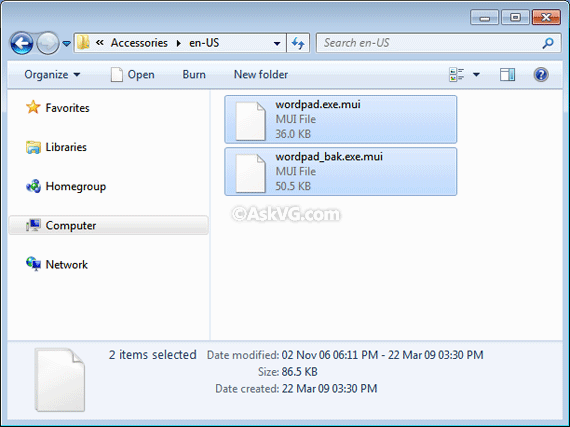
NOTE: If you are using a different language edition of Windows, replace the wordpad.exe.MUI file in your local language folder as well. For example, Czech locale users will need to replace wordpad.exe.MUI file in cs-CZ folder along with en-US folder.
That’s it. Now Windows 7 will start using the classic Wordpad program without ribbons.
If you want to restore the new Wordpad program in future, simply delete the new “wordpad.exe” and “wordpad.exe.mui” files and then rename the backup files to their default names.
Thank you so much–just switched from XP to 7, and the new wordpad was driving me nuts.
One of the great things about the old wordpad is that it strips formatting–sometimes I want to paste info from, say, a bank website, without the clutter of tables. The new wordpad is too ambitious-it wants to show that it can do tables, too, just like Word!
The beauty of wordpad is its simplicity–a tool moving words around easily and quickly. Sometimes, all you need is a pair of pliers–not a pair of pliers that are also vice grips and wirestrippers and have a socket set attached. You spend more time dealing with the settings on the pliers than you spend plying.
So far this is the 3rd thing that has really bothered me about windows 7. The first thing I noticed that I could not stand was the paint was different and I did not like it at all. So I imported paint from XP and used it. Then I noticed sound recorder was actually much worse in windows 7 (they removed most of the features from sound recorder). So I replaced that and now this. I hate having to change operating systems :(. Well thanks for the help 🙂
^^ No problem. You can also check following article:
https://www.askvg.com/aio-how-to-get-all-good-old-classic-features-back-in-windows-7/
Thanks, this works! I now have old (Vista) WordPad on Windows 7!
Thanks. Good great job. Works perfectly. I lift the hat for you.
11/03/14
you always come up with wonderful solutions. We appreciate the time and effort you spend to help others. Thanks a lot.
Hi! Thanks a lot, works perfectly, admire your solution. Do you know if I could use the old wordpad in the Win10 too?
^^ Yes. You can. Check following:
https://www.askvg.com/tip-restoring-classic-programs-and-user-interface-in-windows-10/
(I hope this is not duplicated, I submitted it but got no response.)
The Windows XP WordPad seems to open .doc, but not.docx, files OK. I think some newer .doc files are internally related to .docx; WordPad XP opens them and shows their content with a lot of added rubbish.
The Vista WordPad seems to handle both .doc and .docx (with added rubbish in the new .doc).
Win7’s WordPad opens .docx, but not .doc.
I don’t have any problem with the interface, but have installed the Vista version in Win7, renamed WordPadVista.exe. I just copied it into the WINDOWS directory; it needed an additional file that came in the .ZIP: I created subdirectory WINDOWS\en-US and put file wordpad.exe.mui there.
An alternative to WordPad to read (but not write) files if Microsoft’s Word Reader. Install FileFormatConverter.exe too, to open .docx and other Office formats. Advantage of Word reader, and possibly WordPad: I believe, but do not guarantee, that they are immune to macro viruses, that are being used to steal bank details when fake “documents” sent by email are loaded.
I followed all that and changed it, however when I went to change the file association so that all .rtf programs open the older classic wordpad program it fails. I get unable to create new doc
HELP
This is NOT the classic Wordpad!! The Insert is exactly the same as new versions not the older version; the older version as in Windows XP the Insert function was as easy as choosing a picture to insert in which you’d see the picture in your document whereas the new versions only shows an icon and the picture name as in this so-called Classic Wordpad. This is the main reason I use Wordpad is because I can Insert a picture that I can view in my document, NOT an icon that states a picture is there but can’t see.
I followed the instructions and everything worked fine. After rebooting, it doesn’t work at all. I keep getting “unable to create new document”. I can use the Windows 7 Wordpad by dragging onto wordpad_backup.exe, and of course it’s got the space-hogging ribbon and left margin. I can double click on wordpad_backup.exe and it opens, but neither of those work for wordpad.exe. Trying to open an old rtf by double-clicking gets “unable to create new document”, as does trying to make a new one by right-clicking in a folder and choosing New/Rich Text Document. When I rebooted, a Microsoft service pack was installed (I restored C: drive from a partition three days ago so it could be an old service pack.) Any ideas, anyone?
I downloaded the wordpad.exe and wordpad.exe.mui again, replaced the ones I downloaded yesterday, and it worked, even after rebooting. Could the service pack update have caused the problem? I don’t know but I can’t think of any other cause. I had to get control of yesterday’s wordpad.exe to delete it, but I already had control of wordpad.exe.mui. I’d also got the old version of Paint working before the reboot and service pack update, and it survived with no problems.
It’s an excellent fix, and many thanks to Ask VG, I just hope it keeps working. I spent hours trying replacements for wordpad but found none, there was always a problem like not installing, too much like Word, too geared for software scripts, etc.
To make Wordpad files *open* with the older (and much better) Wordpad, you must also take ownership & rename the wordpad.exe and mui in the “(x86) Program Files/Windows NT/Accessories” folder, then copy the older wordpad files there too. It isn’t enough to just do it in the “Program Files/Windows NT/Accessories” folder.
This isn’t mentioned anywhere above. Also, oddly, the Windows 7 wordpad.exe files in the (x86) folder don’t show up in any kind of search I did. It was maddening trying to figure out why the Windows 7 version of wordpad kept opening when I clicked on an .rtf file, even after I had taken ownership & renamed them as explained at the top of this page.
Thanks so much for this. Works fine for me. I’m a ribbon hater too. Don’t understand why every interface has to be like “cow goes moo” anymore. Are these software makers trying to dumb us down or is it the other way around.
This doesn’t work anymore after may 2017 updates
Ok still works, but wordpad.exe got updated
THANK YOU SO MUCH FOR PROVIDING OLDER VERSION OF WORDPAD 🙂
new wordpad.exe only says “cannot create new document” …
Warning! This comment in polish language below. This classic wordpad not work in polish language. When replacing wordpad.exe.mui in pl-PL folder program is in English interface. Sorry for my bad english.
Dla polskich czytelników. Niestety ten klasyczny Wordpad nie działa po polsku pomimo zamiany wordpad.exe.mui w folderze pl-PL.
XP was the best operating system Microsoft ever designed.
It has been a downhill slide since then.
NOTHING in Windows 7 was an improvement over XP, IMO.
…FORGET about the garbage that has followed.