
Transform Windows 7 into Windows Vista, Download Vista Theme for Windows 7
Today we are going to share an excellent theme for Windows 7 users which will transform Windows 7 into Windows Vista.
The theme has been created for people who don’t like the new Aero theme in Windows 7. Windows 7 uses a similar Aero theme as Windows Vista but Windows 7 theme is very minimal and light in colors and there are people who want the old Vista look back in Windows 7.
So this theme will bring back Windows Vista look to Windows 7 and will make your Windows 7 look-like Windows Vista as shown in following screenshot:
Advertisement
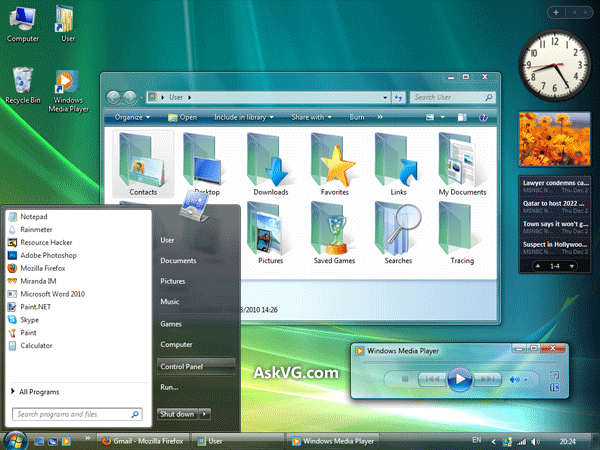
Our friend “fediaFedia” @DA has created this awesome theme for Windows 7. This theme provides Windows Vista look-like UI in Windows 7.
Windows 7 looks very similar to Vista with the help of this theme. You can download this theme using following link:
Download Vista Theme for Windows 7
For more information on how to use this theme, please visit following link:
How to Use 3rd Party Themes in Windows 7?
Also check:
Advertisement
Thank you soooo much, I’ve been searching the whole Internet to find that one advice. It’s perfect!
Thank you again:)
yay 🙂 ive been lookin EEEEEEVVVEEEERRYYYYYUWWHHHHEEERRRREEEEE for this! god bless u.
Can I use this theme with Windows 8 instead of Windows 7?
VG, there is a theme bug in Programs and Features while I use Windows Vista Theme for Windows 7. The Command Bar background it looks like Default Windows 7 Aero theme.
Screenshot : s22.postimg.org/lfgty96up/Command_Bar_bug_in_Windows_Vista_Theme.png
^^ The Programs and Features window doesn’t use Windows theme’s command bar resources. Microsoft has cleverly used similar image resources in both locations. So the theme developer will also need to change the required image resources to change the command bar appearance in Programs and Features window.
Check “Control Panel Task Band Goof-up” in following topic:
https://www.askvg.com/windows-vista-facts-bugs-and-goof-ups/
Microsoft didnt fix it properly in Windows 7. They just used the same resources in both locations.
Another bug found in the same theme on show hidden icons while Taskbar is on left, top, and right. Screenshot : s23.postimg.org/4ld5dgw4r/Vista_VS_Show_hidden_icons_button_bug.png
While Taskbar is on left and right, it looks like the default Windows theme, and while Taskbar is on top, the button it looks like “Hide additional icons”
Hey VG.I want to tell u that when i run universal theme patcher [*86] and then restart my computer..my computers shows black screen after logon screen..I have fixed it by restoring system..Is there any way to run universal theme patcher without any bad effects as i want to follow this tutorial
^^ Make sure you used correct edition of Theme Patcher. There are 2 versions: one for 32-bit and the other for 64-bit. It has worked always fine for me.
^^ Thats strange. It always works fine for me.
^^ Its a theme issue, I cant help. You are getting what the theme designer put in the theme.
how to uninstall the both uxstyle and the theme? it reports error. “your subsystem (e.g. uxtheme.dll, themeui.dll) has been tampered with. it rewuires these to be restored before you can continue. How can I fix it, how can I restore them?
^^ You can uninstall Uxstyle using Control Panel -> Programs and Features. Regarding theme, just apply default Windows theme using Personalization window.
Hello,
I am using Win 7 Pro 64 bit. I replaced explorer.exe & rebooted, but the taskbar is still the same size. It didn’t change to the Vista looking size taskbar. Is there anything else I can try?
Okie, I do have another question. Is there somewhere I can get the WMP 11 from Windows Vista. The current link doesn’t work anymore
What happens if you run this theme in Windows 8?
^^ It’ll not work and you’ll get broken user interface.
Do you know any links to icon packs to replace most (preferably all) the icons in Win 7 with Vista?
I miss the colourful notification icons…
Thanks youuuuuuu
thanks thanks
working
Why when i apply the theme (with patches applied of course), it just shows the classic theme with the vista background?
^^ The classic theme only appears if and only if the system files are not patched properly. Which patcher did you try?