
Transform Windows XP into Windows Vista without using Customization Pack
The most interesting thing in Windows Vista is its look, new icons, cursors, theme, sounds, login screen, boot screen, etc.
If you are still using Windows XP but want to transform your Windows XP into Windows Vista, this tutorial will definitely help you.
After following this tutorial, you’ll be able to make Windows XP look-like Windows Vista.
Advertisement
NOTE 1: Please create a Restore point using “System Restore” before applying anything mentioned in this tutorial so that you can restore your system back to default if you don’t like the changes.
Also take a backup of system files before modifying them, so that you can restore them if anything goes wrong or you don’t like the new change.
NOTE 2: If you are facing problems while saving a file after editing in resource hacker, then make sure you have disabled WFP (Windows File Protection) service using “WFP Patcher” or use “Replacer” to replace the file.
NOTE 3: If you get “Cannot create file” error message while saving the file, please check this tutorial.
So here we start our transformation tour:
Table of Contents
1. Windows Theme or Visual Style:
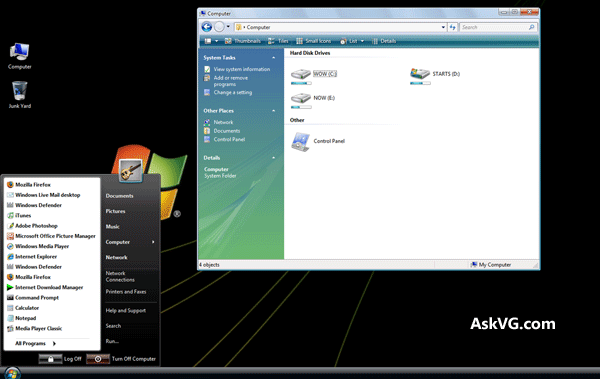
First thing which you should change is XP theme. You can get Windows Vista look in XP using “VistaVG Ultimate” theme:
Advertisement
VistaVG Ultimate Theme for Windows XP
2. Icons:
Here is an Icon Pack for Windows XP, which will change XP default icons with Windows Vista icons. So you’ll experience the high-resolution Vista icons in XP:

VistaVG Icon Pack for Windows XP
3. Boot Screen:
In Vista, Microsoft has removed the graphical boot screen and there is a minimal boot screen with just a progress bar. But it looks nice and you can download a similar boot screen for XP from here:
Download Windows Vista Boot Screen for XP
Use Tuneup Utilities to apply it. Its completely safe. To know more about Tuneup Utilities, visit following link:
How to change Windows XP Boot Screen using Tuneup Utilities
4. Login Screen or Welcome Screen:
Windows Vista login screen looks similar to Windows 7 login screen except the background image and the text displayed at bottom.

Download Windows Vista Login Screen for Windows XP
5. Sounds and Cursors:
Windows Vista contains new sounds and cursors which are quite nice. You can download both these things from here:
Download Windows Vista Sounds and Cursors
To use sound files, just open “Sounds & Audio Devices” (mmsys.cpl) in Control Panel and go to “Sounds” tab and here you can replace windows default sounds with the new ones.

To use cursor files, first right click on the “Install.inf” file present in the download pack and select “Install” option. Then open Control Panel, click on “Mouse” applet and then select “windows7 Cursors” scheme from the list and apply it.
6. Progress Dialog Box:
Vista progress dialog box is different from XP. But we can make our XP dialog box to look-a-like Vista one by using Resource Hacker.

Just open “C:\Windows\System32\Shell32.dll” file in Resource Hacker and then go to:
Dialog -> 1020 -> 1033
Now replace the existing code in right-side pane with the following code:
1020 DIALOGEX 20, 20, 237, 134
STYLE DS_FIXEDSYS | DS_MODALFRAME | DS_NOIDLEMSG | WS_MINIMIZEBOX | WS_POPUP | WS_CAPTION | WS_SYSMENU
EXSTYLE WS_EX_APPWINDOW
CAPTION “”
LANGUAGE LANG_ENGLISH, SUBLANG_ENGLISH_US
FONT 8, “MS SHELL DLG”
{
CONTROL “”, 106, “SysAnimate32”, ACS_TRANSPARENT | ACS_AUTOPLAY | ACS_TIMER | WS_CHILD | WS_VISIBLE, 65532, 0, 236, 25
CONTROL “Location:”, 0, STATIC, SS_LEFT | WS_CHILD | WS_VISIBLE | WS_GROUP, 10, 30, 31, 10
CONTROL “”, 103, STATIC, SS_LEFT | SS_NOPREFIX | WS_CHILD | WS_VISIBLE, 70, 30, 155, 10
CONTROL “File name:”, 0, STATIC, SS_LEFT | WS_CHILD | WS_VISIBLE | WS_GROUP, 10, 45, 33, 10
CONTROL “”, 102, STATIC, SS_LEFT | SS_NOPREFIX | WS_CHILD | WS_VISIBLE, 70, 45, 155, 10
CONTROL “Time remaining: About”, 0, STATIC, SS_LEFT | WS_CHILD | WS_VISIBLE | WS_GROUP, 10, 60, 83, 10
CONTROL “”, 105, STATIC, SS_LEFT | SS_NOPREFIX | WS_CHILD | WS_VISIBLE, 93, 60, 155, 10
CONTROL “Speed: 10.2 MB/sec”, 0, STATIC, SS_LEFT | WS_CHILD | WS_VISIBLE | WS_GROUP, 10, 73, 103, 10
CONTROL “”, 104, “msctls_progress32”, PBS_SMOOTH | WS_CHILD | WS_VISIBLE, 10, 88, 217, 10
CONTROL 404, 0, STATIC, SS_BITMAP | WS_CHILD | WS_VISIBLE | WS_CLIPSIBLINGS | WS_GROUP, 65530, 107, 267, 28
CONTROL “Cancel”, 2, BUTTON, BS_DEFPUSHBUTTON | WS_CHILD | WS_VISIBLE, 177, 113, 50, 16
}
Click on Compile Script button.
You’ll also have to replace existing AVIs in the file with new Vista ones. Just download following ZIP file and extract it:
After extracting the ZIP file you’ll get 3 AVI files and 1 BMP file. Replace existing AVIs in shell32.dll file with these new ones in following manner:
AVI -> 160 ->1033 with 160.avi
AVI -> 161 ->1033 with 161.avi
AVI -> 162 ->1033 with 162.avi
AVI -> 163 ->1033 with 162.avi
AVI -> 164 ->1033 with 162.avi
Now add the 404.bmp file at 404 location in file. Just click on Action -> Add a new resource and then click on Open file with new resource button. Select the downloaded BMP file and click on Open. Now in Resource Name enter 404 and in Resource Language enter 1033 and click on Add Resource button. That’s it.
7. Shutdown/log off dialog box:
Windows Vista doesn’t have any shutdown / log off dialog box but we can redesign Windows XP default shutdown box to make it more refreshing like following screenshot:

Download required BMP files from here:
Extract the file and you’ll get 4 BMPs with the name:
1.bmp
2.bmp
3.bmp
4.bmp
Now open “C:\Windows\System32\Shell32.dll” file in Resource Hacker and then replace following BITMAPs with the mentioned BMP files:
Bitmap -> 14351 -> 1033 with 1.bmp
Bitmap -> 14353 -> 1033 with 2.bmp
Bitmap -> 14354 -> 1033 with 1.bmp
Bitmap -> 14355 -> 1033 with 2.bmp
Bitmap -> 14356 -> 1033 with 3.bmp
now save the file and open C:\Windows\System32\msgina.dll file in Resource Hacker and then replace following BITMAPs with the mentioned BMP files:
Bitmap -> 20140 -> 1033 with 1.bmp
Bitmap -> 20141 -> 1033 with 2.bmp
Bitmap -> 20142 -> 1033 with 1.bmp
Bitmap -> 20143 -> 1033 with 2.bmp
Bitmap -> 20150 -> 1033 with 4.bmp
Now save the file.
8. About Windows box:
To change the About Windows box you’ll have to change 2 things: the BITMAP file and the text of box saying Windows XP.
Download the required BITMAP file from here:
Open “C:\Windows\System32\Shell32.dll” file in Resource Hacker and then replace following BITMAPs with the downloaded BMP file:
Bitmap -> 131 -> 1033 (For XP Professional)
Bitmap -> 147 -> 1033 (For XP Home)
Now open C:\Windows\System32\msgina.dll file in Resource Hacker and then replace following BITMAPs with the downloaded BMP file:
Bitmap -> 101 -> 1033 (For XP Professional)
Bitmap -> 107 -> 1033 (For XP Professional)
Bitmap -> 128 -> 1033 (For XP Home)
Bitmap -> 129 -> 1033 (For XP Home)
Now to change the text of dialog box, open “C:\Windows\System32\xpsp1res.dll” file in Resource Hacker and then go to:
Dialog -> 14352 -> 1033
Now replace the existing code in right-side pane with the following code:
14352 DIALOGEX 20, 20, 275, 198
STYLE DS_FIXEDSYS | DS_MODALFRAME | WS_POPUP | WS_CAPTION | WS_SYSMENU
CAPTION “About %s”
LANGUAGE LANG_ENGLISH, SUBLANG_ENGLISH_US
FONT 8, “MS Shell Dlg”
{
CONTROL 0, 12297, STATIC, SS_ICON | WS_CHILD | WS_VISIBLE, 7, 55, 21, 20
CONTROL “Microsoft %s”, 13568, STATIC, SS_LEFTNOWORDWRAP | SS_NOPREFIX | WS_CHILD | WS_VISIBLE, 35, 55, 200, 10
CONTROL “Copyright (c) 2006 Microsoft Corporation. All rights reserved.”, 13578, STATIC, SS_LEFT | SS_NOPREFIX | WS_CHILD | WS_VISIBLE, 35, 75, 210, 10
CONTROL “”, 13581, STATIC, SS_LEFT | SS_NOPREFIX | WS_CHILD | WS_VISIBLE, 35, 85, 180, 20
CONTROL “This product is licensed under the Microsoft Software License Terms to:”, 13586, “SysLink”, 0x50000000, 35, 105, 180, 20
CONTROL “user name”, 13575, STATIC, SS_LEFT | SS_NOPREFIX | WS_CHILD | WS_VISIBLE, 45, 125, 180, 10
CONTROL “org name”, 13576, STATIC, SS_LEFT | SS_NOPREFIX | WS_CHILD | WS_VISIBLE, 45, 135, 180, 10
CONTROL “”, 13095, STATIC, SS_ETCHEDHORZ | WS_CHILD | WS_VISIBLE, 35, 147, 235, 1
CONTROL “Physical memory available to Windows:”, 13570, STATIC, SS_LEFT | SS_NOPREFIX | WS_CHILD | WS_VISIBLE, 35, 152, 133, 10
CONTROL “”, 13571, STATIC, SS_LEFT | SS_NOPREFIX | WS_CHILD | WS_VISIBLE, 170, 152, 88, 10
CONTROL “OK”, 1, BUTTON, BS_DEFPUSHBUTTON | WS_CHILD | WS_VISIBLE | WS_TABSTOP, 220, 178, 50, 14
CONTROL “Version 6.0”, 0, STATIC, SS_LEFTNOWORDWRAP | SS_NOPREFIX | WS_CHILD | WS_VISIBLE, 35, 65, 235, 10
}
Click on Compile Script button and save the file.
9. System Properties dialog box:
To change the System Properties dialog box, you can follow this tutorial:

Customizing System Properties Dialog Box (Sysdm.cpl file) in Windows XP
Get Windows Vista Style System Properties in Windows XP
10. A few other mods:
1. Windows Vista shows the “View” menu on desktop too, you can also enable it in XP using following tut:
How to enable “VIEW” Menu on Desktop in Windows XP

2. Windows Vista’s All Programs menu is different from XP, you can follow following tutorial to make your XP Programs menu similar to Vista:
Change Look-n-Feel of Windows XP Start Menu
3. In Windows Vista explorer, A small status bar is displayed under each drive icon showing the filled and free space in the drive.

You can also do the same in XP by using a 3rd party utility:
Download Vista Drive Status for XP
Just run the file and it’ll add the status bar for each drive.
4. In Windows Vista explorer, we get Bread Crumbs in addressbar which is quite useful. You can also get the same feature in Windows XP using “QT Addressbar”:

QT Addressbar: Windows Vista Addressbar Clone for Windows XP
5. In Windows Vista whenever you hover your mouse cursor over a Desktop icon, it shows a cool transparent rectangle over the icon. You can get the same effect in XP using following tool:

Get Windows Vista and 7’s Desktop Icon Mouse Hover Effect in Windows XP
That’s all for now. After following all the above mentioned steps, you’ll get Windows Vista look-n-feel in Windows XP.
NOTE: If you have any problem with Resource Hacker and want to know about it, then please go through following tutorials:
All About Resource Hacker in a Brief Tutorial
List of Files to be Customized using Resource Hacker
List of a few Locations in Windows XP System Files to be Customized using Resource Hacker
sir….. thank u for shearing ur knowledge with tha world …… u are real good person … again thank u very very much…..
Very well-made. Such shame Microsoft ditched Aero for Metro.
is there any other way 2 use boot screen instead of tune up utilities , coz it says your tuu have expired.
^^ Check following:
https://www.askvg.com/how-to-install-and-apply-custom-3rd-party-boot-screens-in-windows-without-replacing-default-ntoskrnl-exe-file/
classic startup menu with Windows 7 Taskbar in Windows XP
Is this possible Windows Vista, 7 Taskbar into Windows XP?
What is the Source Code for Windows Vista Taskbar?
i could’nt download any transform pack for here, plzzz vg help me…..
^^ Its not a package. You’ll need to apply each step manually. That’s why its a custom transformation guide.
^_^ request: windows vista transformation into xp
Too bad the file-copy dialog hack is useless; the transfer speed is hard-coded and not reflective of the actual speed. 🙁