
[Tip] How to Show File Extensions of Shortcuts (LNK, URL, PIF) in Windows Explorer?
By default all Windows versions such as Windows XP, Vista, Windows 7 or Windows 8 don’t show file extensions for known file types such as exe, mp3, txt, doc, avi, etc. It is done to make user experience easier so that the user doesn’t get confused by various file extensions. But Windows allows you to show these hidden file extensions. You can enable this feature using Folder Options. Just disable “Hide extensions for known file types” option in Folder Options.
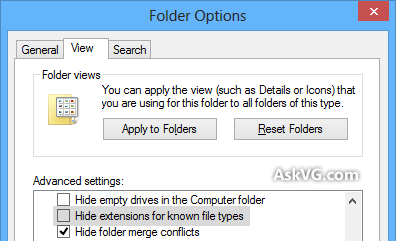
Once you disable the option, Windows will start showing almost all file extensions and you’ll be able to distinguish between different file types. In my opinion this feature to always show file extensions should be enabled by default as it might be a big security risk. Its very easy to mask an EXE file as TXT or any other filetype by renaming the file to filename.txt.exe. If Windows is set to hide file extensions, you’ll see the file name as filename.txt and you’ll never know that the file is actually an executable. As soon as you open the txt file, it’ll execute the exe file and the file will spread the virus in your computer.
Advertisement
That’s why its always advisable to show all file extensions in Windows. But even if you ask Windows to show all file extensions by disabling the above mentioned option in Folder Options, there are still a few system reserved file extensions which are not shown in Windows Explorer. These file extensions include LNK (file shortcuts), URL (Internet shortcuts), PIF (DOS shortcuts), etc.
Actually Windows uses a built-in Registry key to hide these file extensions. This Registry key is called “NeverShowExt“. If you set this key for any desired file extension in Registry Editor, that file extension will never be shown in Windows Explorer.
Following is a list of some popular super hidden file extensions which are set to never show in Windows Explorer:
- LNK (File/Folder Shortcut)
- URL (Internet Shortcut)
- PIF (MS-DOS Program Shortcut)
- SCF (Windows Explorer Command)
- SHS (Shell Scrap Object)
- SHB (Document Shortcut)
- XNK (Exchange Folder Shortcut)
All above mentioned file types contain the NeverShowExt string in Windows Registry which automatically hides their extension in Windows Explorer irrespective of the folder option to show file extensions is on or off.
Again its a big security risk. Anyone can create a scrap object or any other malicious program and rename it to filename.txt.shs. Obviously Windows will not show .shs extension and you’ll see the filename as filename.txt. You’ll open the txt file and it’ll actually spread the virus in your computer.
So what’s the solution? How to show all file extensions including these super hidden file extensions in Windows? Here is the answer!
You just need to delete NeverShowExt string present in Windows Registry for all those super hidden file types and you’ll be able to see all file extensions in Windows.
Advertisement

So if you want to improve your computer security and if you want to show all file extensions in Windows, check out following simple steps:
1. Press WIN+R keys to launch RUN dialog box. Type regedit and press Enter. It’ll open Registry Editor.
2. Now go to Edit -> Find or press Ctrl+F keys together. It’ll open find dialog box.
3. Type NeverShowExt in find text box and press Enter. It’ll start searching for the string and will show the first occurrence of the string.

You’ll find several occurrence of NeverShowExt string in Registry but delete the string only for desired keys. Be very careful while deleting the string. You might find the string in a few other file types as well such as account picture, library, etc.
Take a backup of the key before deleting NeverShowExt string. Right-click on the key and select Export option to take the backup.
4. Now select NeverShowExt string present in right-side pane and press Delete key to delete it. Press F3 key and it’ll search for the next occurrence of NeverShowExt string. Again delete the string and repeat the same process until you get “Finished searching through the registry” message.
5. That’s it. Once you finish deleting the NeverShowExt string from registry, restart Windows and now Windows will always show all file extensions in Explorer.
NOTE: As usual we are also providing a ready-made Registry script to automatically remove the NeverShowExt string from Registry for above mentioned super hidden file extensions. Just download following ZIP file, extract it and run extracted REG file. It’ll ask for confirmation, accept it:
Download Registry Script to Show Super Hidden File Extensions in Windows
Restart your system and Windows will show all file extensions in Explorer.
in my experience, PIF file is the most clever virus trigger. Thanks Sir VG.
Err…any way to put them back? (Specifically .lnk and .library-ms)
I stopped Exporting them about 1/4 of the way through, and now I regret that 🙁
@a
LOL, I noticed that too. You can download mine: mediafire.com/?fuz7z04o7dczud7
Yeah I done this a long time ago. It makes things really ugly if you have a bunch of shortcuts on desktop 😉
VG reg deletes the items so to put them back replace all the
“NeverShowExt”=-
to
“NeverShowExt”=””
Excellent. Thanks VG, as always, you’re awesome.
thanks for the detailed step by step guide. i hope they won’t make thing messy.
VG Can you also make a script to put them back?
When using the script of zydrius32 I get some errors.
^^ Just edit the REG file given in main article using Notepad and replace – sign with “” in all lines. Save the file and run it. It’ll restore values.
@ VG Thanks back to normal.
@ zydrius32 I know I did nothing bad, but I didn’t had a good feeling about the errors and afterwards I still had the .url extension.
Those keys were original (exported from registry before making changes) and they started to work for me after computer restart. I don’t know why that didn’t work for you. Anyway, it’s not important now, because you resolved your problem.
Hi All…
I have a working “Show System Information” routine on an About Form. However, the “System Information” Form displays behind the Main Form and the About Form disappears. Both the Main Form and the About have “Set Form on Top” calls.
How can I get the “System Information” Form on Top? It was displayed by a Call Shell(SysInfoPath, vbNormalFocus). As such, there is no hWnd readily available for the new form. At least, I do not know how to get it.
Is there a way to get this information? Perhaps from the Registry?
Or, more to the point, How can I get the Form “on Top”?
You have answered my questions in the past. I will bet someone has the answer.
Thanks,
cuttysark55
PS : I am coding in Visual Basic 6 and am conversant with Registry programming
^^ Sorry but I have no idea about it. It’ll be done via programming. Registry will not help in your case.
I have tried the NeverShowExt in my registry but it doesn’t seem to work for my Windows Vista.
I’m on Windows 8.1.
Your instructions don’t work for me because after I confirm wanting to permanently delete the value “NeverShowExt” located in “Computer\HKEY_CLASSES_ROOT\lnkfile”, it displays a small window saying “Error Deleting Values” and “Unable to delete all specified values.”.
^^ If you are having problem in deleting the key, first take ownership of the key:
https://www.askvg.com/guide-how-to-take-ownership-permission-of-a-registry-key-in-windows/
Thanks a lot it was really useful, even some “NeverShowExt” couldn’t delete it and still not showing the .lnk extension in WINDOWS EXPLORER so I used WINRAR to rename the file (with extension).
Thanks
Thank you.
Is there a way to tell Windows 7 that I want to see the .lnk extension in Windows Explorer but not in my Start Menu? nor in my QuickLaunch. Only in Windows Explorer it is useful for me, but apart from that, it looks like clutter
NeverShowExt is a VALUE, not a KEY. My goodness, get it right!
why so rude @annoying. of course its a value …
jonathanmedd.net/2014/02/testing-for-the-presence-of-a-registry-key-and-value.html
Hey VG, can you please add “Hide extensions / Restore default.reg” for restoring default behavior in that ZIP file?
It isn’t necessary to log off or restart Windows for the changes to take effect. Simply do this:
Open Task Manager (Ctrl+R, “taskmgr”)
On the “Processes” tab, start typing “explorer” to find explorer.exe
Kill it (press Delete or click “End Process”), and confirm
Don’t freak out because your open folders and start menu disappeared
Press Ctrl+R, type “explorer”, and hit Enter
Voila!
“Once you disable the option, Windows will start showing almost all file extensions and you’ll be able to distinguish between different file types. In my opinion this feature should come enabled by default as it might be a big security risk.”
I think you meant “it should be DISABLED by default” , i.e. unchecked – because you mentioned how file.txt.exe can easily be mistaken for a text file…
^^ Changed the statement a little. Thanks for the heads up.
Windows 10 build 1809, Default Apps in Control panel is redirecting to SETTINGS now. And default By File, By App, or By Protocol, is only having an OPTION to go to MS STORE and not on your computer to pick and app, as I want a PORTABLE APP to handle URL, but it seems impossible. In previous versions, I could do this, but now it it is not. In properties, one can browser the computer for an app, likewise in the context menu , open with would work, but not for an URL in a folder. How can I add to settings default area, Look for an app on the computer as a second option?
thanks bro