
How to Customize and Tweak Windows Vista Screen Savers using Registry Editor?
Microsoft’s latest OS Windows Vista comes with a few new Screen Savers as mentioned in following list:
- Aurora
- Bubbles
- Mystify
- Ribbons
Although these new screen savers are nice but Microsoft has put restrictions on these screen savers settings. Users are not allowed to change any of these screen savers settings. There is no Options box given to change the settings.
Actually the screen savers were initially developed to be customizable but the Options window was disabled while releasing them for no reason.
Advertisement
If you open the screen savers MUI files in Resource Hacker or Resource Tuner, you’ll find their Options dialog box resources.
No need to worry. You can use Registry tweaks to change these screen saver settings. Today in this tutorial, we’ll tell you registry locations and all customizable options for these screen savers.
So if you want tweak and customize Windows Vista screen savers, check out following simple steps:
Table of Contents
Customize Aurora Screen Saver:
1. Type regedit in RUN dialog box and press Enter. Now go to following key:
HKEY_CURRENT_USER\Software\Microsoft\Windows\Current Version\Screensavers\Aurora
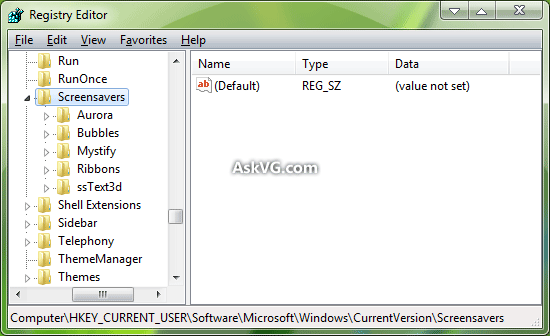
2. In right-side pane, create following DWORD values given in BOLD and set their values as mentioned below them:
Advertisement
Amplitude
Min Value – 500000000
Max Value – 2000000000
Brightness
Min Value – 1000000000
Max Value – 1050000000
NumLayers
Min Value – 1
Max Value – 15
Speed
Min Value – 1000000000
Max Value – 2100000000
AllScreensSame
This DWORD value is used for multiple monitors. If you set it to 1, then all monitors will use the same configuration file and will show same screen saver otherwise not.
SpanMultiMon
This DWORD value is used for multiple monitors. If you set it to 1, then screen saver will move between both monitors otherwise it’ll show on both screens separately.
Customize Bubbles Screen Saver:
1. Type regedit in RUN dialog box and press Enter. Now go to:
HKEY_CURRENT_USER\Software\Microsoft\Windows\Current Version\Screensavers\Bubbles
2. In right-side pane, create following DWORD values given in BOLD and set their values as mentioned below them:
ShowShadows
To enable – 1
To disable – 0
MaterialGlass
To show Transparent Bubbles – 1
To show Solid bubbles – 0
ShowBubbles
For Transparent Background – 1
For Black Background – 0
TurbulenceNumOctaves
Min Value – 1
Max Value – 255
TurbulenceSpeed
Min Value – 0
Max Value – 10
TurbulenceForce
To enable – 1
To disable – 0
Radius
For Small Bubbles – 1090000000
For Large Bubbles – 1130000000
SphereDensity
For less Bubbles on Screen – 1000000000
For More Bubbles on Screen – 2100000000
AllScreensSame
This DWORD value is used for multiple monitors. If you set it to 1, then all monitors will use the same configuration file and will show same screen saver otherwise not.
SpanMultiMon
This DWORD value is used for multiple monitors. If you set it to 1, then screen saver will move between both monitors otherwise it’ll show on both screens separately.
Customize Mystify Screen Saver:
1. Type regedit in RUN dialog box and press Enter. Now go to:
HKEY_CURRENT_USER\Software\Microsoft\Windows\Current Version\Screensavers\Mystify
2. In right-side pane, create following DWORD values given in BOLD and set their values as mentioned below them:
LineWidth
Min Value – 1000000000
Max Value – 1080000000
NumLines
Min Value – 1
Max Value – 100
Blur
To enable – 1
To disable – 0
AllScreensSame
This DWORD value is used for multiple monitors. If you set it to 1, then all monitors will use the same configuration file and will show same screen saver otherwise not.
SpanMultiMon
This DWORD value is used for multiple monitors. If you set it to 1, then screen saver will move between both monitors otherwise it’ll show on both screens separately.
Customize Ribbons Screen Saver:
1. Type regedit in RUN dialog box and press Enter. Now go to:
HKEY_CURRENT_USER\Software\Microsoft\Windows\Current Version\Screensavers\Ribbons
2. In right-side pane, create following DWORD values given in BOLD and set their values as mentioned below them:
RibbonWidth
Min Value – 1000000000
Max Value – 1080000000
Numribbons
Min Value – 1
Max Value – 100
Blur
To enable – 1
To disable – 0
AllScreensSame
This DWORD value is used for multiple monitors. If you set it to 1, then all monitors will use the same configuration file and will show same screen saver otherwise not.
SpanMultiMon
This DWORD value is used for multiple monitors. If you set it to 1, then screen saver will move between both monitors otherwise it’ll show on both screens separately.
NOTE: You can play with the above mentioned options by settings their values to anything falling under their limits. There are a few other unknown options available but we have not mentioned them cause we don’t know their use.
If you want to revert back to default settings, then simply delete the newly created DWORD values.
Comments
NOTE: Older comments have been removed to reduce database overhead. Be the first one to start the discussion.