
How to Change or Customize Day Name, Date and Time Format on Windows 8 and 8.1 Lock Screen?
UPDATE: This tutorial will also work in Windows 8.1.
If you are using the latest Windows 8 OS, you must be already aware of the new Lock Screen which is shown just before the login or welcome screen. It works similar to a mobile phone lock screen. You need to press any key or use a mouse click to unlock the computer.
This new lock screen shows a nice background image which can be changed using PC Settings as described here. If you don’t like lock screen, you can turn it off using this guide.
Advertisement
Lock Screen in Windows 8 shows some useful information such as battery status, network connectivity status, email notifications, etc. Apart from this information, it also shows current day name, date and time in big fonts which might be useful for many people.
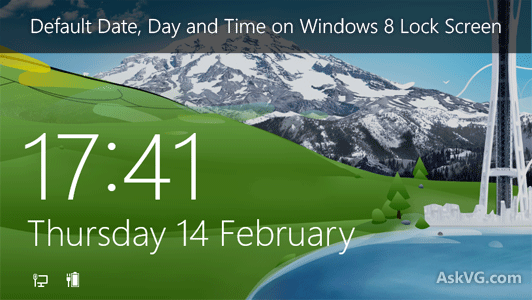
But if you want to change or customize the display format of date and time on lock screen, you can’t do it. By default Windows 8 doesn’t provide any built-in option to customize date and time style of lock screen.
Today in this tutorial we are going to share a hidden Registry tweak which will allow you to customize day name, date and time format on Windows 8 lock screen. With the help of this tutorial you’ll be able to:
- Switch between 12-hour and 24-hour time format on lock screen
- Change language of day name and date on lock screen
In testing builds of Windows 8 such as Developer Preview, Consumer Preview or Release Preview, a hidden file “UserSettings.ini” was used to store information about the date and time format of lock screen. This file was present in “%appdata%\Microsoft\Windows\Logon\” folder. It contained information about current locale name, language, time format, etc and looked like following:
[GlobalizationPreferences]
TimeFormat=hh:mm tt
LocaleName=en-US
GeographicRegion=US
Calendar=GregorianCalendar
Clock=24HourClock
Languages=en-US

Advertisement
One could easily change the settings given in the INI file and it used to immediately apply to lock screen. Unfortunately Microsoft removed this feature from final RTM version of Windows 8. Now the INI file no longer exists in Windows 8 and even if you create the file manually, it doesn’t work.
So how to customize the day, date and time display format on Windows 8 lock screen? Don’t worry! Although Microsoft removed the INI file but they put the same information in Windows Registry. Now you’ll need to edit Registry to change or customize the information.
So if you want to customize Windows 8 Lock Screen date and time format and if you want to change display language of Windows 8 lock screen information, check out following simple steps:
1. Press WIN+R keys to launch RUN dialog box. Type regedit and press Enter. It’ll open Registry Editor.
2. Now go to following key:
HKEY_LOCAL_MACHINE\SOFTWARE\Microsoft\Windows\CurrentVersion\SystemProtectedUserData
3. Under “SystemProtectedUserData” key, you’ll see a key with the name similar to S-1-5-21-x-x-x-x. Under this key, navigate to:
HKEY_LOCAL_MACHINE\SOFTWARE\Microsoft\Windows\CurrentVersion\SystemProtectedUserData\S-1-5-21-x-x-x-x\AnyoneRead\LocaleInfo
4. The “LocaleInfo” key is the one which we require to change the lock screen date and time format. This key contains all the required information which was stored in INI file in Windows 8 testing builds.
5. Click on “LocaleInfo” key and in right-side pane, you’ll see various Strings such as:
- Calendar
- Clock
- GeographicRegion
- Language
- LocaleName
- NativeDigits
- SubstitutionMode
- TimeFormat

6. We’ll be playing with following Strings only:
- Language
- LocaleName
- TimeFormat
You might need to take ownership of the Registry key before editing it. Please check this guide to learn how to take ownership of a Registry key.
7. First let’s talk about time format. If your Windows 8 lock screen shows time in 24-hour format, then the “TimeFormat” String in your Windows 8 Registry would be set to HH:mm tt. Change it to hh:mm tt and it’ll start showing the time in 12-hour format.

Same principle applies to 12-hour format. If your Windows 8 lock screen shows time in 12-hour format, then the “TimeFormat” String would be set to hh:mm tt in your system. Change it to HH:mm tt and it’ll start showing the time in 24-hour format.
8. Now its turn of display language. If you want to show day name and date in a different language on lock screen, you can change values of Language and LocaleName Strings to your desired language code.
For example, if you want to show the information in Hindi language, change values of Language and LocaleName Strings to hi-IN and lock screen will start showing day name and date in Hindi language.

You can use any language code such as en-US for English, de-DE for German, fr-FR for French, ru-RU for Russian, etc.
Following are some screenshots of Windows 8 Lock Screen showing day name and date in different languages:
Windows 8 Lock Screen information in German:

Windows 8 Lock Screen information in Russian:

Its fun to show information on Lock Screen in a different language. Feel free to try the tutorial and share your feedback in your comment…
Also Check:
Hi,
Am wondering, which one of the 3 S-1-5-21-x-x-x-x. registry keys do I make the changes in? My PC is on Windows 8 Enterprise (not 8.1).
Pic:
imgur.com/SAcRwFp
^^ First try with the first key. If it doesnt work, then apply in all 3 keys.
Can the clock be removed from the lock screen? I have enough other clocks in my house that I don’t need a giant one on my computer screen
i did HH:mm to hh:mm it works……… 😀 (y)…thank you very much
I want to change my Date and Time color on lock screen (windows 8 ) VG…???
please help me.
^^ Sorry but thats not possible. It may be done by modifying system files or theme files but I dont have much idea.
i m getting “error writing the value’s new content” what should i do??
^^ You’ll need to take ownership of the key as mentioned in step 6. Following guide will help you in taking ownership:
https://www.askvg.com/guide-how-to-take-ownership-permission-of-a-registry-key-in-windows/
i took ownership permission….before also..bt still it comes error..!!
^^ After taking ownership, did you allow full control to the user? Also try to take ownership of parent Registry key.
I have a painting by Ingres on my pre-login screen, and I wish the time and date weren’t there at all. It would look much cooler with just the painting. I’m assuming it’s impossible to remove the calendar and clock from this screen.
I finally got a computer with Winn 8.1 pre-installed (and proceeded to customize it so it feels like Windows 7–btw, there’s a utility from IObit, Start Menu 8 v.1.4, which does a very good job of restoring the Win 7 start menu).
I just tried this particular tweak, and got 24-hour time on the lock screen, no problem. But how would I get the *date* to show as, say, “Wednesday, 4 June 2014” instead of the US English standard it came with of “Wednesday, June 4”. I tried adding a new string value of DaterFormat and filling the value accordingly, but it did nothing. So, um, what do I do???
Hey VG, I don’t have localeinfo folder on anyone read. Only 2 folders, colors and lockscreen, i don’t see any folder. why i dont have any folder like on the picture above? Is this a problem? 🙁
^^ There should be more than one “S-1-5-21-x-x-x-x” folder in following location:
HKEY_LOCAL_MACHINE\SOFTWARE\Microsoft\Windows\CurrentVersion\SystemProtectedUserData\
Yeah, but all of them doesn’t have those folders. There are 3 folders in SystemProtectedUserData. 2 of them has only subfolders colors and lockscreen, the another one has only one subfolder “colors”. Help me with this. 🙁 Is this can cause problem on my computer? I can’t change my lockscreen wallpaper, maybe because of this. 🙁
You didn’t answer the question-
how do you change the size of the font on the clock?
^^ I told in my previous comments, changing font size is not possible.
How to Access this folder in windows 8.1
%appdata%\Microsoft\Windows\Logon\
Hi @VG. First of all, thank you for this trick, It was so useful 🙂
I have another problem, how to apply language in CharmsBar Date/Time Panel (WinKey + C)?
On the bottom left the rectangular date/time panel is shown… with wrong language 🙁
If you know RegEdit trick, you will help me.
Thank you in advance 🙂
^^ Make sure correct language and locale is set in Regional Settings window. There are multiple places in Regional settings to change locale and language.
I get his error: Cannot Edit Language: Error writing the value’s new contents.
Please help.
^^ You need to take ownership of the key first:
https://www.askvg.com/guide-how-to-take-ownership-permission-of-a-registry-key-in-windows/
Hi!
if someone get error message : error writing the value’s new content
you can do like this :
Create net user administator account in CMD, then you can edit regedit with full rights.
To enable this account, follow these steps :
1)Run cmd as administrator
2) type in cmd net user administrator /active:yes
Now you can swich user, and log with administrator and make these changes.
To turn administator account, just log back to your account, run cmd as administrator and type in cmd net user administrator /active:no
Editing the registry also works on windows 10 preview all builds.
One thing that I would like to know if any one happens to know how can I make the time and date smaller they are too big for my taste.
Thank you
Can this fix be applied to all domain users that log in the computer?
when I’m trying to change the language I’m getting the message “error writing the value’s new contents ” why?…
how to solve this problem plz help me…
^^ Take ownership of the Registry key:
https://www.askvg.com/guide-how-to-take-ownership-permission-of-a-registry-key-in-windows/
Thanks for the help mate, it just worked fine but when i swipe to the side panel the date and time is still in hindi, but on lock screen i managef to change in English
Hi,
I have changed the setting to 12 hrs format ..it is reflecting in lock screen as well, But AM/PM is missing in the lock screen, where as it is present in the right bottom corner.
It this the default behavior of windows 10 or i am missing some thing out here.
Thanks for information, but in Regedit
Computer\HKEY_LOCAL_MACHINE\SOFTWARE\Microsoft\Windows\CurrentVersion\SystemProtectedUserData
All values are different in SystemProtectedUserData in Windows 10, can we create another key?
^^ I haven’t tried in Windows 10. You can try to create manually. May be it’ll work?