
Create Bootable USB Drive or DVD of Windows Setup Using “Windows 7 USB/DVD Download Tool” from Microsoft
UPDATE: This tool can also be used to create bootable USB drive or setup DVD of Windows 8, Windows 8.1 and Windows 10.
If you download your Windows 7 copy using Microsoft Store or your MSDN/TechNet/Connect account, it comes in ISO file format which needs to burn to a DVD.
What to do if you don’t have a DVD drive? You can create a bootable USB drive to install Windows 7.
Advertisement
Microsoft has released a new utility “Windows 7 USB/DVD Download Tool” which allows you to create a bootable USB drive to install Windows 7. It also allows you to create bootable DVD.
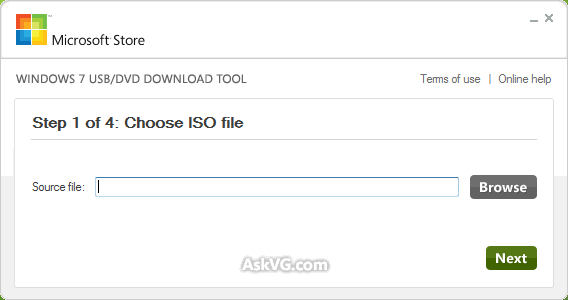
You can download it using following link:
How to Use:
- After downloading and installing the tool, when you launch it, it’ll ask you to select the path where you have stored Windows 7 ISO file. Provide the ISO file path and click on “Next” button.
- Now it’ll ask you whether you want to create bootable USB drive or DVD. Click on the desired button.
- If you select “USB Device”, it’ll ask you to insert the USB device. If your USB device is compatible, it’ll be automatically detected by the tool.
- Click on “Begin Copying” button. Now you’ll be prompted to format the USB device. Accept the confirmation.
- That’s it. The tool will start copying the installation files to USB device.
- At last, it’ll show a message that “Bootable USB device created successfully”.
System Requirements:
- Windows XP SP2, Windows Vista, or Windows 7 (32-bit or 64-bit)
- Pentium 233-megahertz (MHz) processor or faster (300 MHz is recommended)
- 50MB of free space on your hard drive
- DVD-R drive or 4GB removable USB flash drive
You can also take a look at some other similar free tools to create bootable USB drives to install Windows using following link:
Advertisement
Ultimate Collection of Best Freeware to Create Bootable USB Drive to Install Windows and Linux
Also Check:
Official Tool to Download Windows 8.1 Setup ISO and Create Installation Media
Pls i have the windows 7 Alright but my Internet Explorer is not updating …and always when i switch on my laptop,,,it will tell me to check update for Internet Explorer and when loading it will say error…pls help me out<<<<<
^^ Note down the update number and then try to manually install that update after downloading it from Microsoft website.
i have a samsung external hard drive… i don’t know if its compatible but it has about 298G on it, and the windows 7 DL tool won’t detect it.. whats my problem?
@sandeep
see the links below:
askvg.com/wincdemu-mount-cddvd-images-iso-nrg-mdsmdf-img-etc-including-all-windows-versions-with-a-simple-double-click-in-explorer/
askvg.com/iso-toolkit-freeware-to-create-convert-copy-and-extract-iso-image-files/
-29th Jan 2014, 06:49 G:MT
I tried to follow your instructions, can not find windows 8 iso. I have window 8 already installed on a Toshiba laptop. Thanks
Can I use a single USB to boot both Windows 7 and 8 as and when required?
^^ You can try following:
https://www.askvg.com/xboot-free-utility-to-create-multiboot-usb-and-cd/
The previously Published Microsoft link has been moved or changed.
Anyone reading this article can still obtain from the following URL:
Windows 7 USB/DVD Download Tool
wudt.codeplex.com/downloads/get/96313
i want to make bootable usb to boot win 7 64 bit. from using cmd of win 32 bit.
it gives a mssg that it is not compatible.what i have to do.
plz help……..thanks.
have tried multiple usb/cd software all say that my ISO is not correct even though it came straight from microsoft website what is the problem
^^ It seems the ISO file is corrupt. You’ll need to download it again.
@bond
Did you try any 3rd party software to create bootable USB?
https://www.askvg.com/ultimate-collection-of-best-freeware-to-create-bootable-usb-drive-to-install-windows-and-linux/
I’m struggling to create a bootable image neither on USB/CD please help and I’m still using old version of windows xpsp2…and already installed various versions burning software’s like IMG,anyburn and so on!
^^ There are many software. Try following:
https://www.askvg.com/ultimate-collection-of-best-freeware-to-create-bootable-usb-drive-to-install-windows-and-linux/